Overview
The WhatsApp AI Agent feature enables your AI Agent to operate on WhatsApp alongside your website and app. Your learners can interact with your AI Agent directly through WhatsApp without needing to open your website or app. With the WhatsApp AI Agent, learners can engage through:
- Text messages
- Voice messages
- Images
- Direct conversations
The AI Agent will also handle WhatsApp campaign messages, providing consistent responses across all channels.
Note: The WhatsApp AI Agent feature is only available if you have integrated WhatsApp white-label. If white-label is not integrated, you will see the message "You've not linked your WhatsApp yet" when attempting to enable the feature.
Prerequisites
Before enabling the WhatsApp AI Agent, ensure the following conditions are met:
- Your AI Agent must be published on your website
- WhatsApp white-label integration must be active on your creator account
- You have access to the AI Agent settings as an admin
- You have a Meta Business Account with a configured Business ID
Step 1: Publish Your AI Agent
- Go to AI Agent from the left sidebar
- Navigate to the Overview tab
- Ensure your agent configuration is complete (name, personality, behavior, skills, etc.)
- Click the Published dropdown in the top-right corner of the header
- Select Published to activate your AI Agent on the website
Step 2: Integrate WhatsApp White-Label
WhatsApp white-label integration allows you to send messages to customers using your own branded WhatsApp Business Account. Follow these steps to set it up.
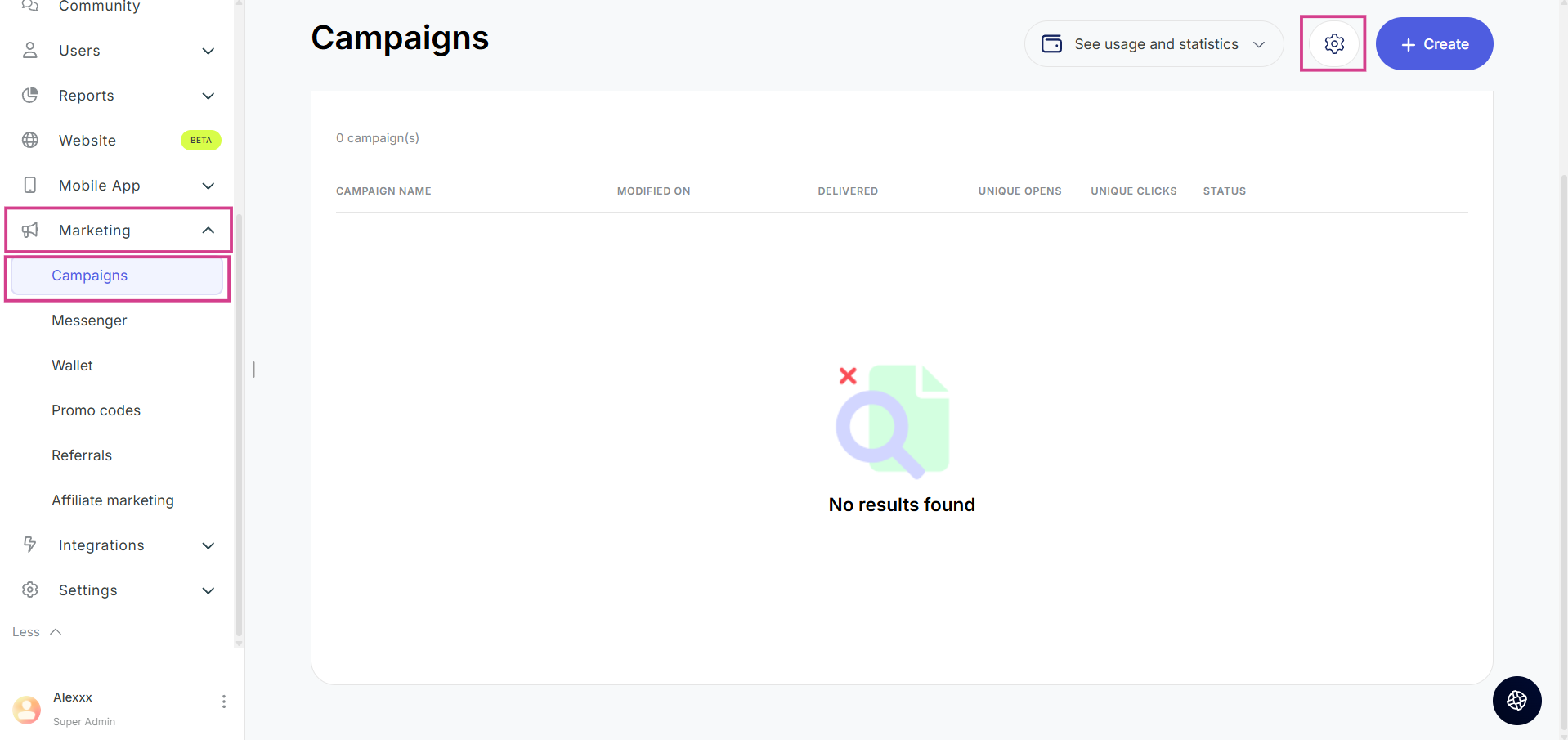
2.1 Access WhatsApp Settings from Campaigns
- Go to Marketing → Campaigns from the left sidebar
- A Campaign Settings modal will open
- In the left sidebar of this modal, click on WhatsApp
2.2 Initiate WhatsApp Branding Setup
You will see the Brand your WhatsApp section with setup options. Click the Get started button to begin the integration process.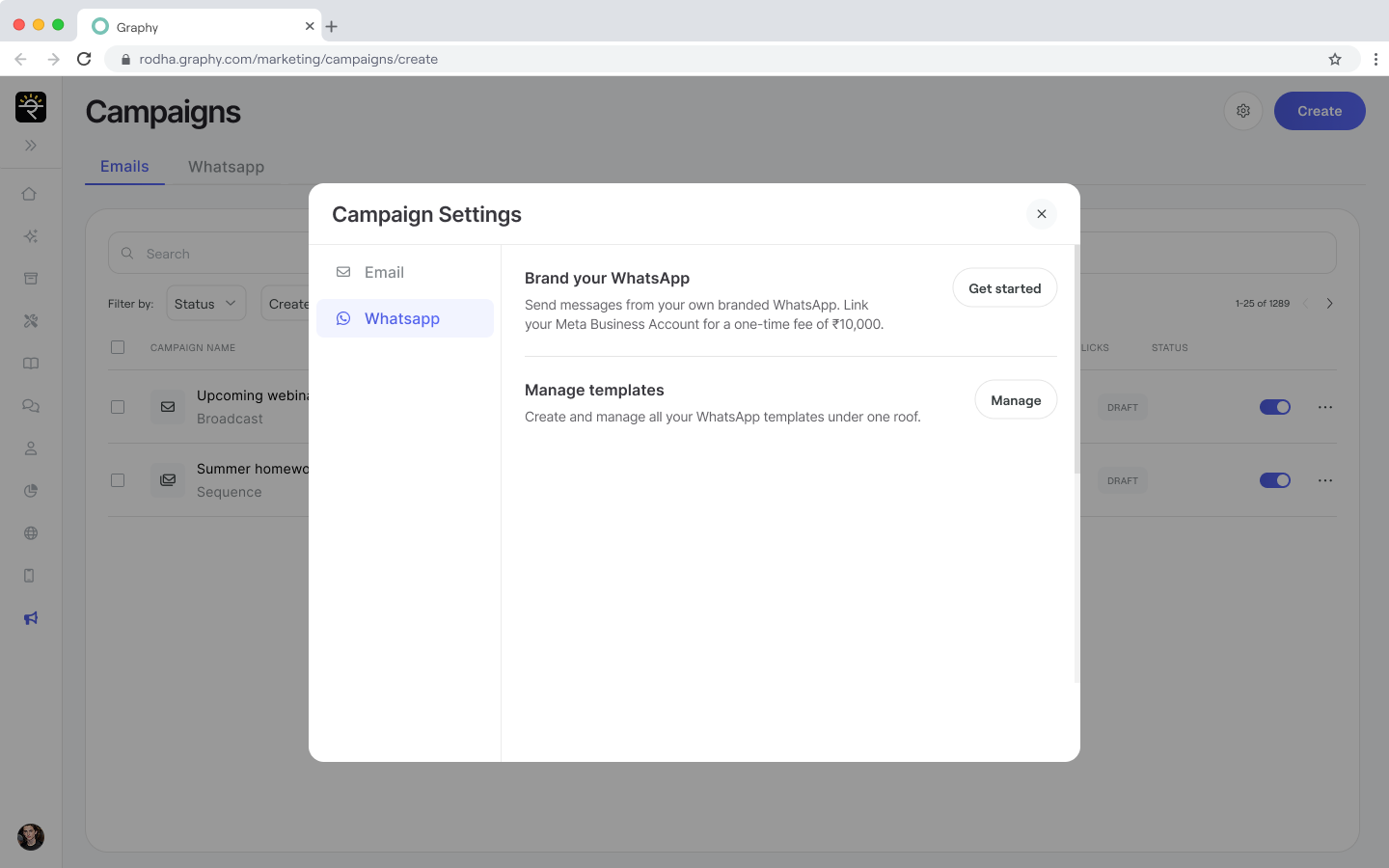
2.3 Create Your WhatsApp Business Account
You will be redirected to create your WhatsApp Business Account. A page will display requesting the following information:
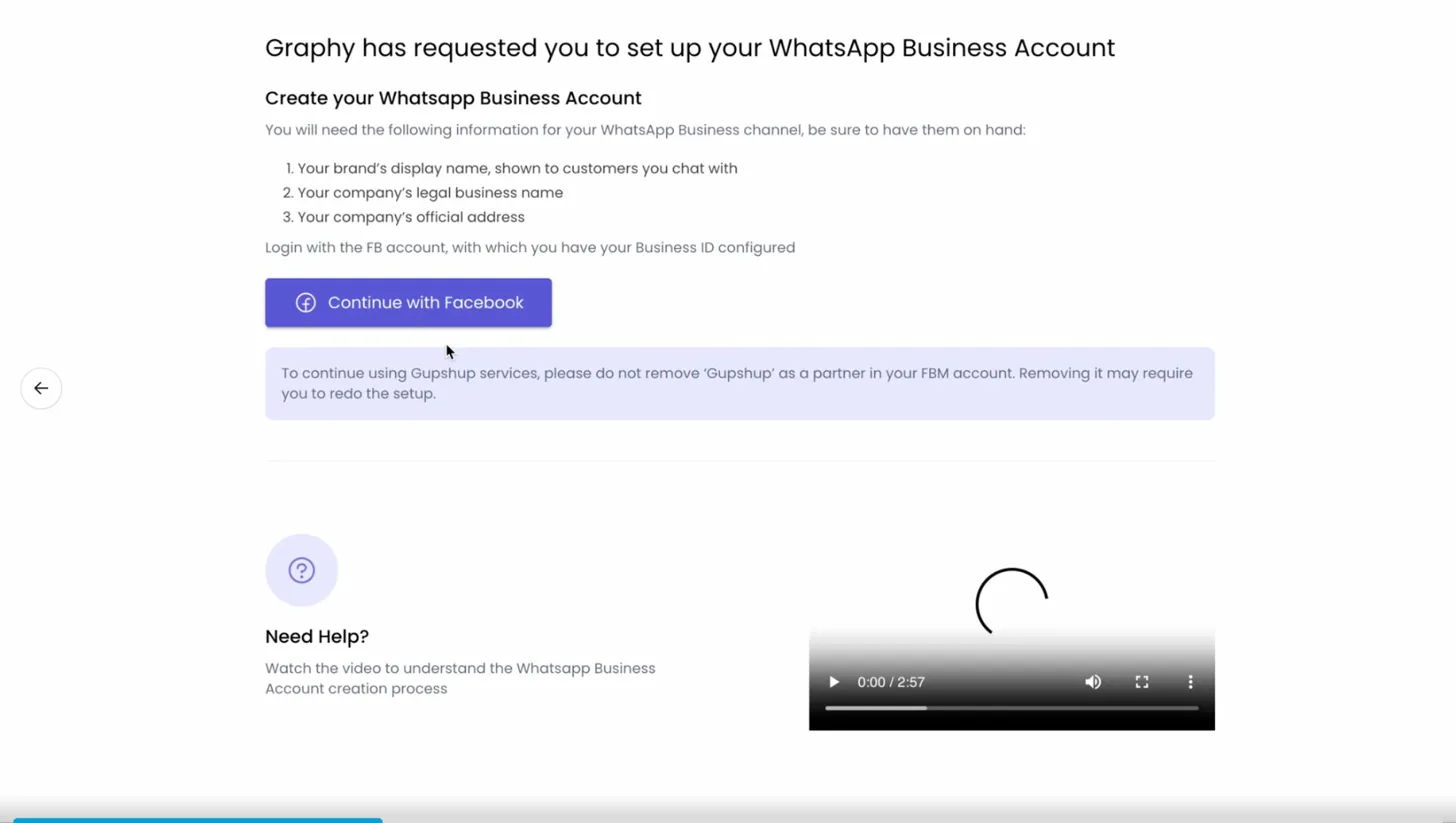
You will need:
- Your brand's display name (what customers will see)
- Your company's legal business name
- Your company's official address
- A Meta/Facebook account with your Business ID configured
- Click Continue with Facebook to proceed with Meta account authentication.
2.4 Facebook Authentication
Log in to your Facebook account using the credentials associated with your Business ID.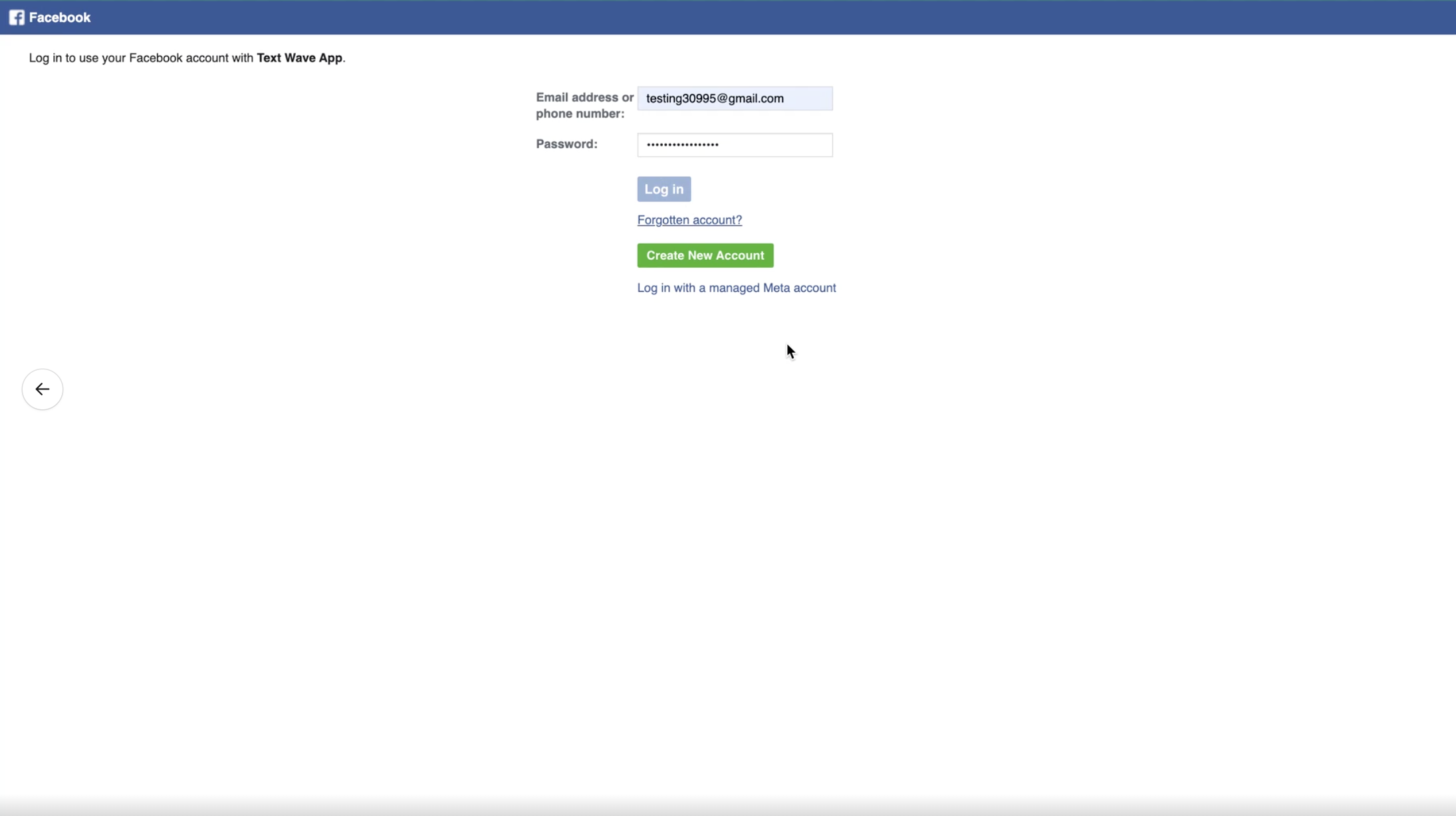
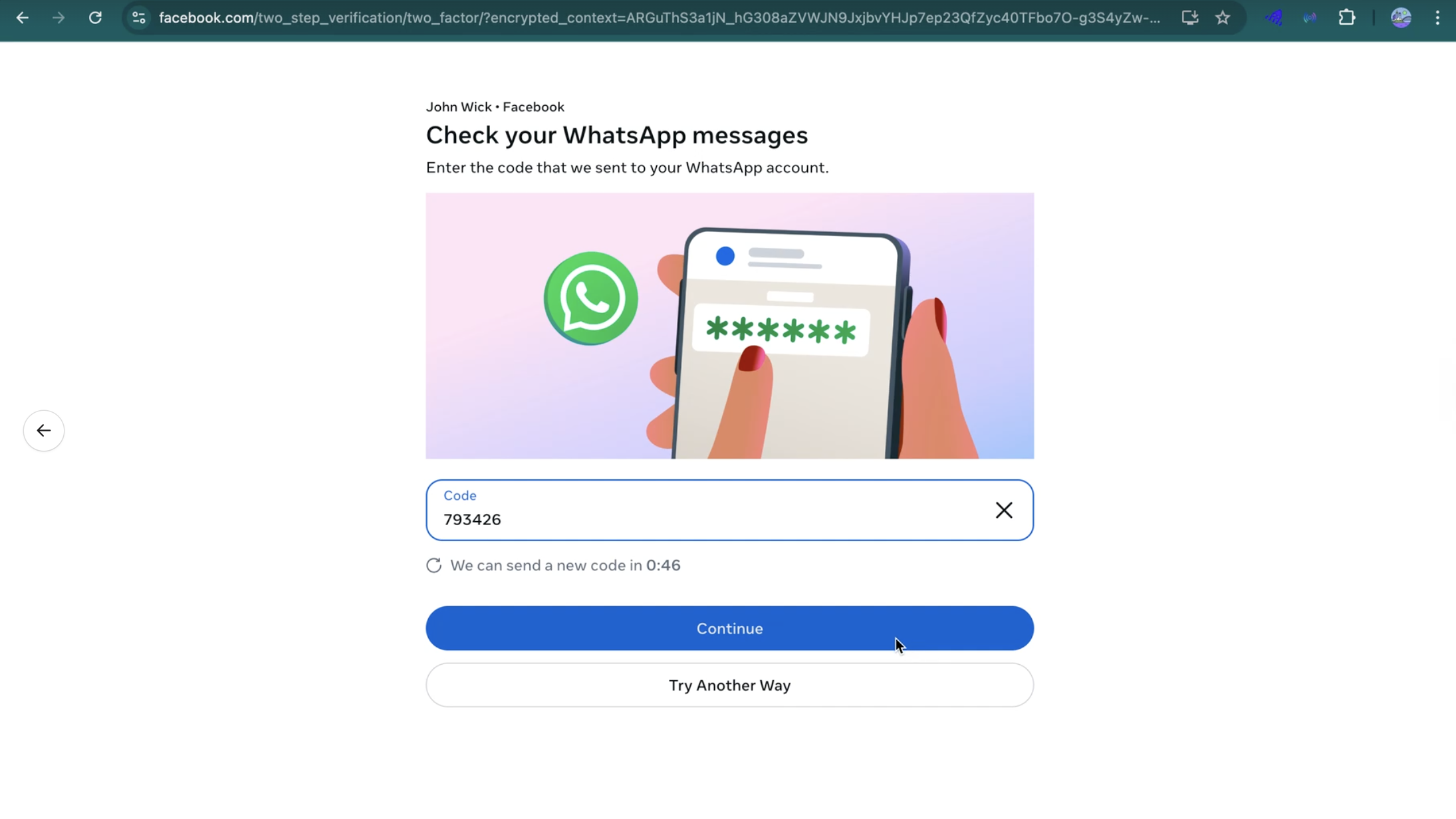
2.5 Verify WhatsApp Account
After logging in, a verification code will be sent to your WhatsApp number. You will be directed to a verification screen. Enter the 6-digit verification code you receive via WhatsApp and click Continue.
 2.6 Select Business Assets
The next step asks you to select the business assets to share with the integration provider.
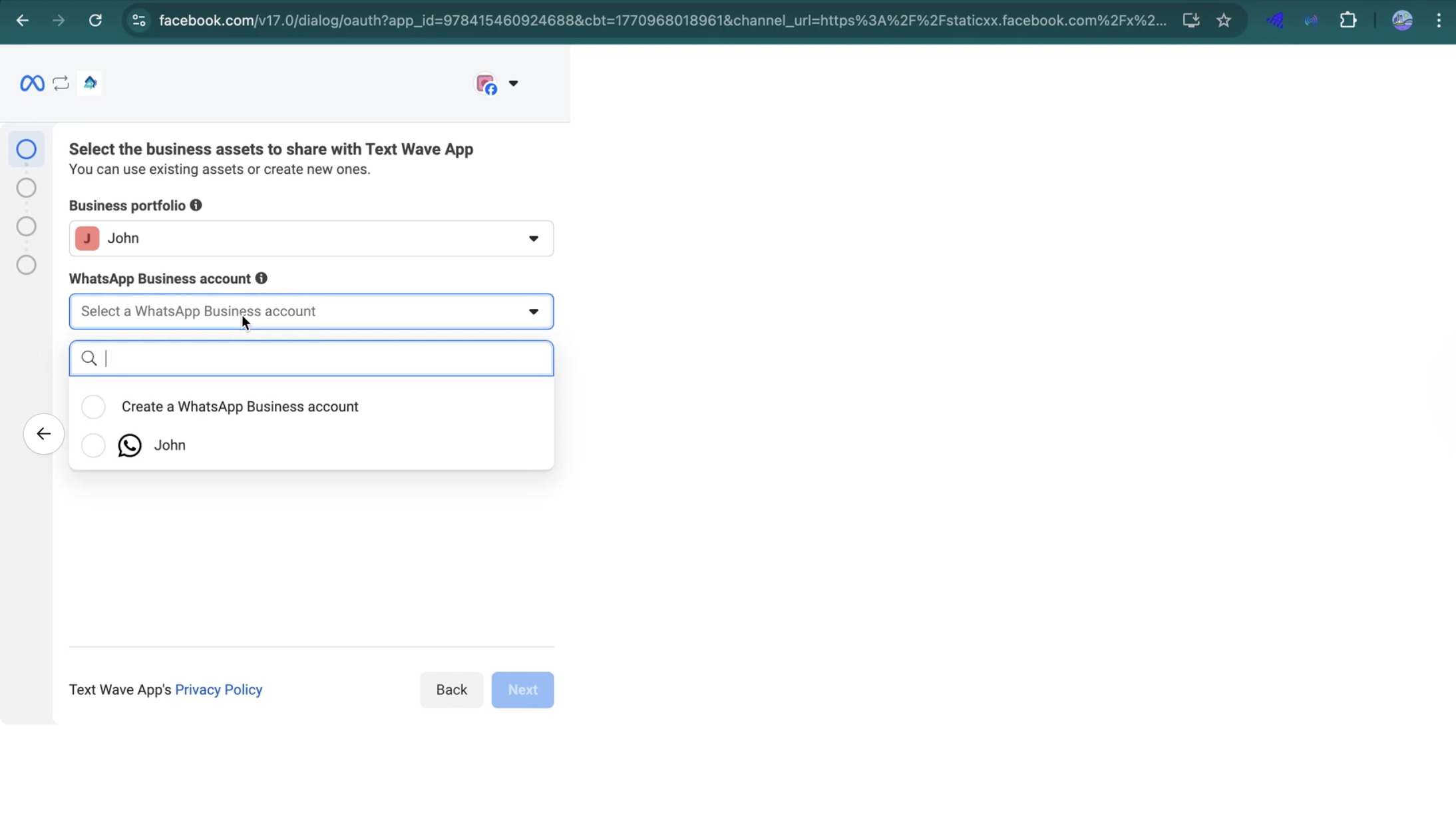 Complete the following selections:
- Business Portfolio: Your business account should be pre-selected
- WhatsApp Business Account: You can either select an existing WhatsApp Business Account or create a new one by selecting Create a WhatsApp Business account
Click Next to continue.
2.7 Add WhatsApp Phone Number
You will be prompted to add the phone number that will be associated with your WhatsApp Business Account.
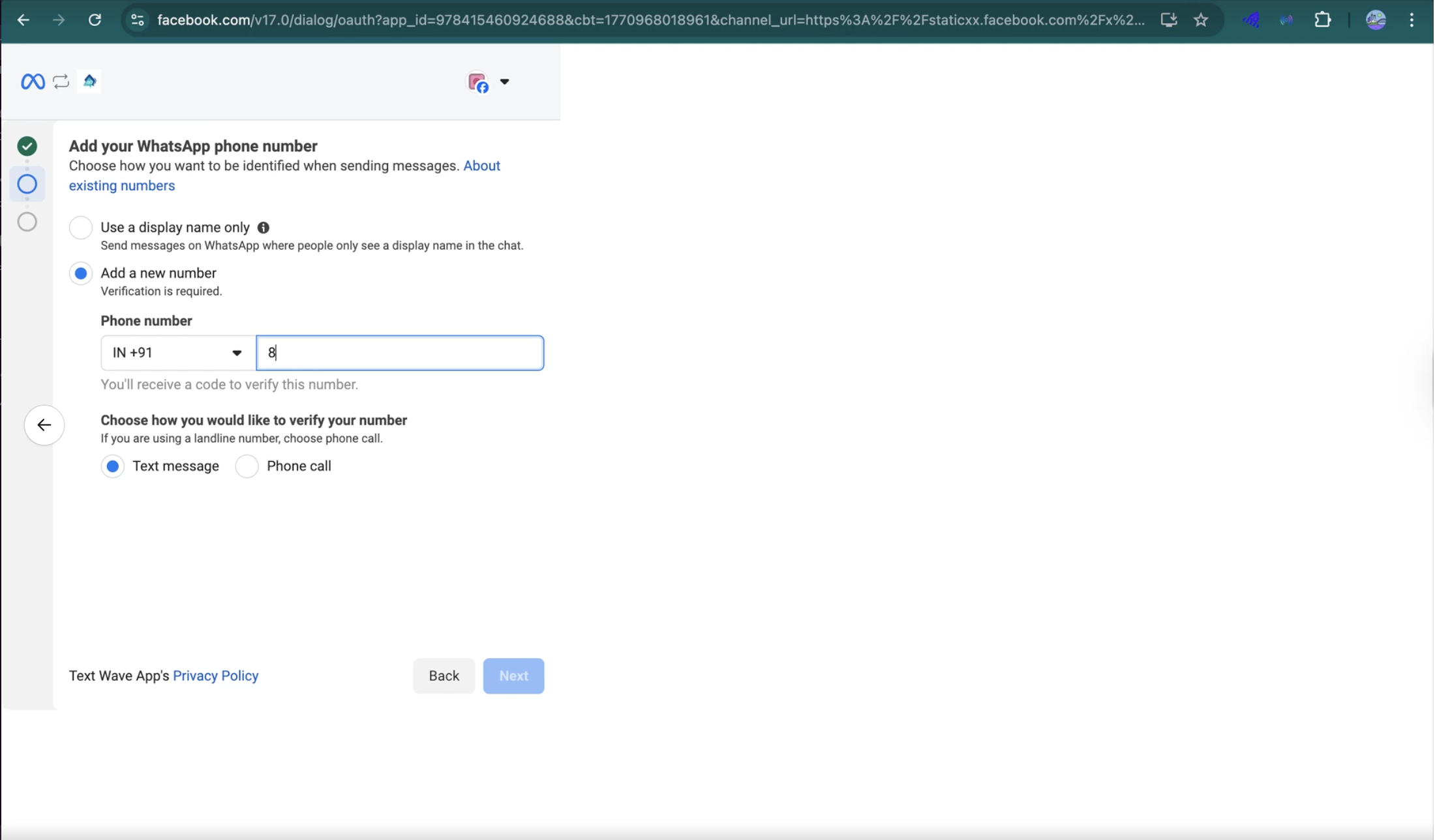 Select the phone number from the dropdown or add a new number
- Check the acknowledgment box confirming that this number will be permanently associated with the WhatsApp Business Account
- Click Next to verify the number
2.8 Verify Phone Number
A verification code will be sent to the phone number you selected via SMS or phone call.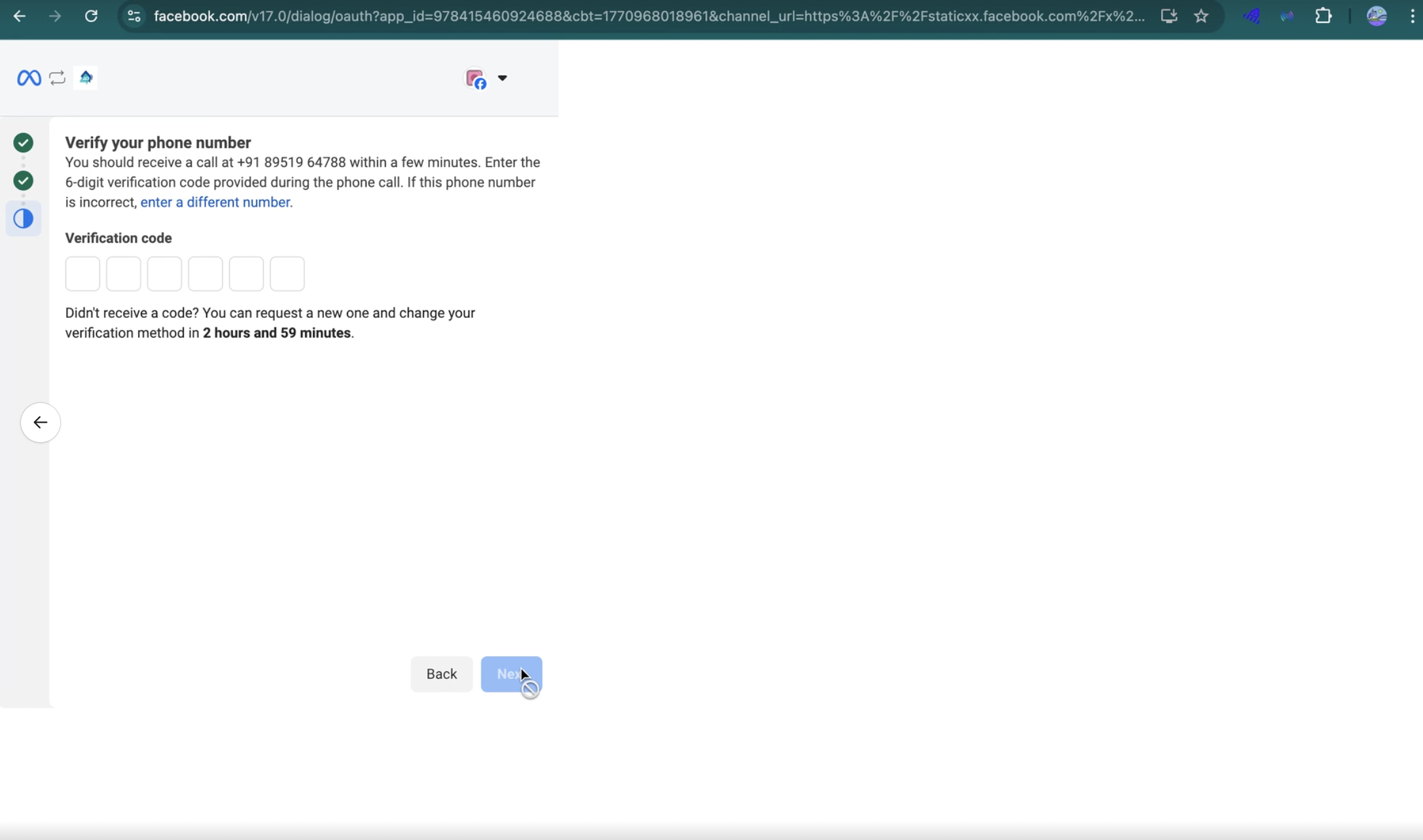
Enter the 6-digit verification code and click Next.
2.9 Review Permissions
Review the permissions and access that the integration provider will have. The integration will be able to:
- Manage your WhatsApp accounts
- Manage and access conversations in WhatsApp
- Log events on your WhatsApp Business account's behalf
Click Confirm to accept and proceed.
2.10 Account Connection Confirmation
You will see a confirmation that your account has been successfully connected to the integration provider.
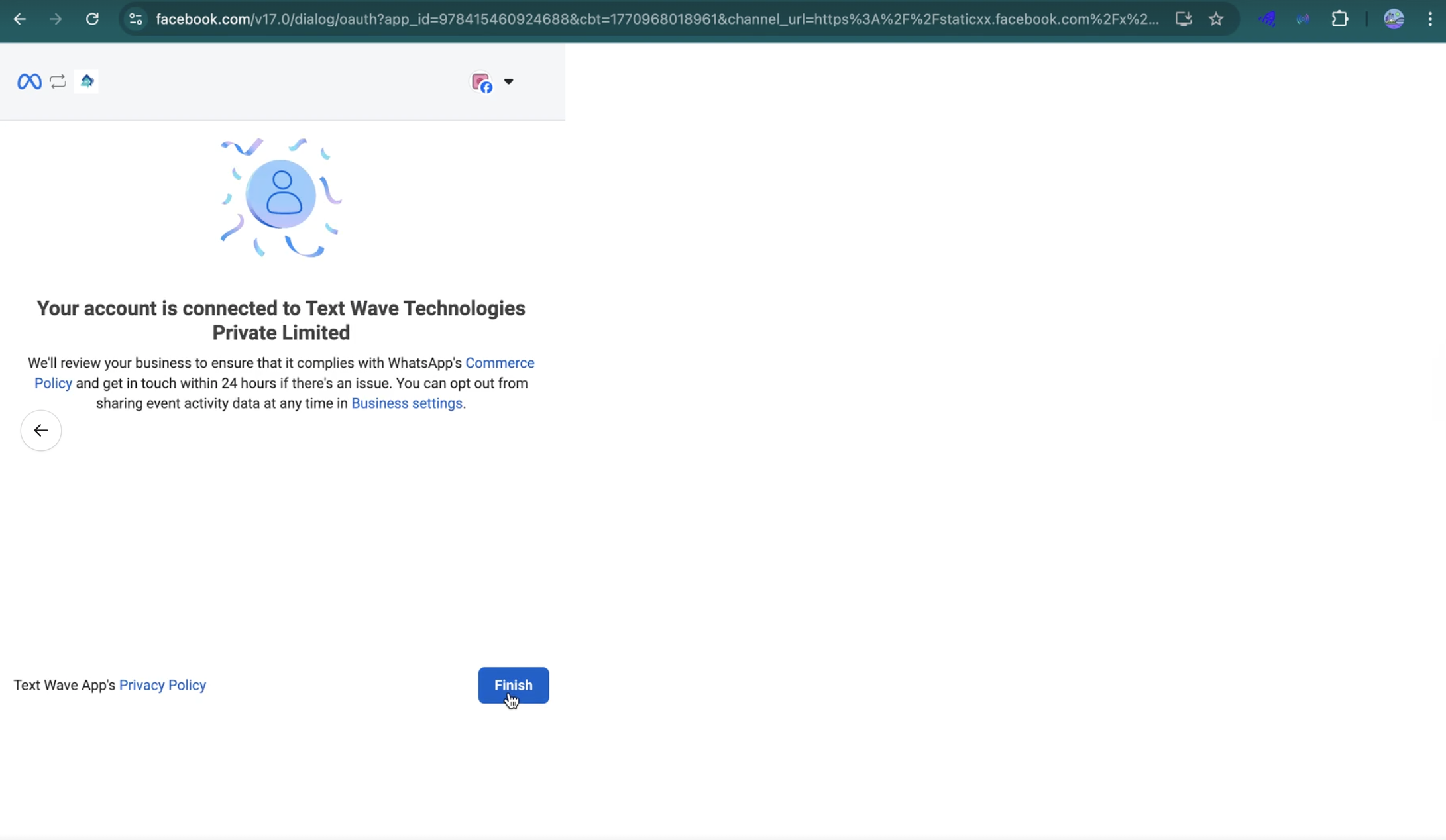
WhatsApp will review your business to ensure compliance with their policies. You will be contacted within 24 hours if there are any compliance issues.
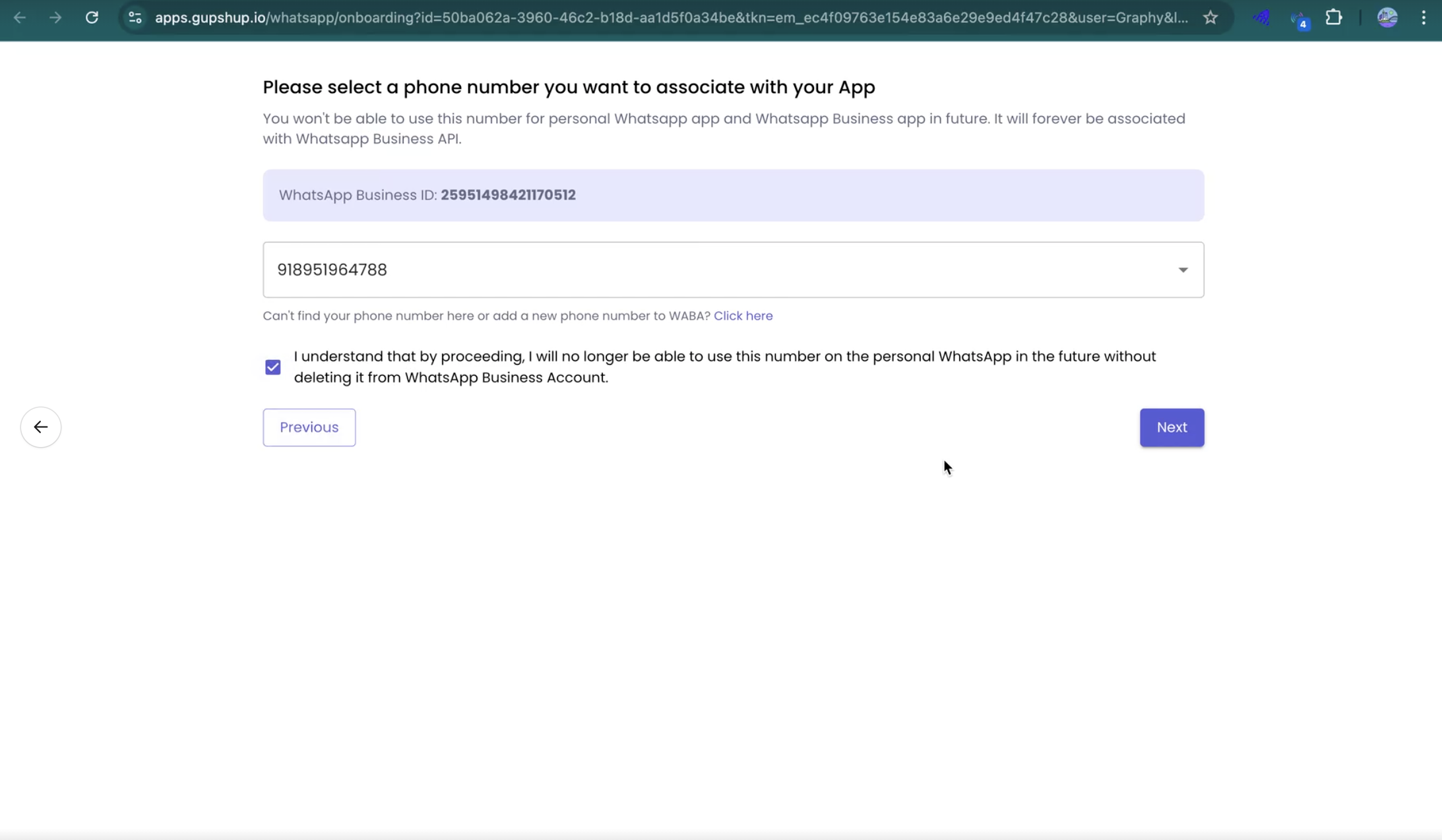
2.11 Select Phone Number in Gupshup
You will be redirected to the Gupshup platform to finalize the setup and associate your phone number. The page will display:
- Your WhatsApp Business ID (WABA ID)
- A dropdown to select your phone number
Select your phone number from the dropdown, accept the terms, and click Next.
2.12 Phone Registration on Facebook Cloud
The system will register your phone number on Facebook Cloud. This process may take a few moments.
2.13 Onboarding Complete
Once registration is complete, you will see a success confirmation page. Your WhatsApp white-label integration is now complete. The page will display:
- Phone Number: Your WhatsApp Business phone number
- WABA ID: Your WhatsApp Business Account ID
Save these details for your records.
Step 3: Enable WhatsApp AI Agent Toggle
Now that WhatsApp white-label integration is active, you can enable the WhatsApp AI Agent feature.
- Go to AI Agent → Overview
- Look at the right side panel where you see the Published status dropdown
- You will now see the WhatsApp toggle switch (previously it showed "You've not linked your WhatsApp yet")
- Click the toggle to enable WhatsApp AI Agent
- Once enabled, your AI Agent is now live on WhatsApp and ready to handle customer conversations.
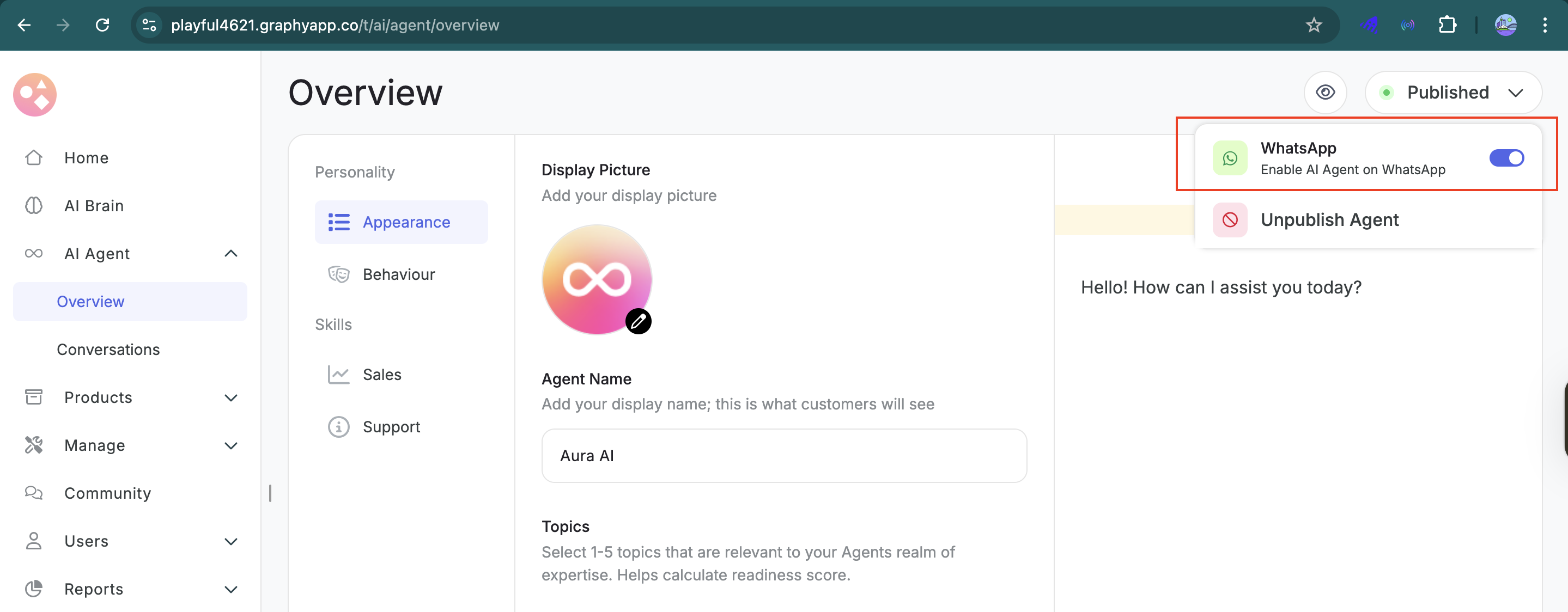
Your AI Agent will now:
- Respond to learner inquiries about your courses and packages on WhatsApp
- Handle WhatsApp campaign messages when you send broadcasts or updates
- Support multiple input types including text, voice messages, and images
- Provide course information and recommendations directly in WhatsApp conversations
- Maintain consistency with the same responses as your website and app AI Agent
Was this article helpful?
That’s Great!
Thank you for your feedback
Sorry! We couldn't be helpful
Thank you for your feedback
Feedback sent
We appreciate your effort and will try to fix the article