You can now add multiple coaches to your coaching program. If your coaching program has more than one coach, sessions are shared fairly between them using a Round-Robin system. Instead of one coach ending up with all the bookings, each selected coach gets their turn. This article covers how to assign multiple coaches, add weights, and help each coach get bookings.
Assigning coaches to a program
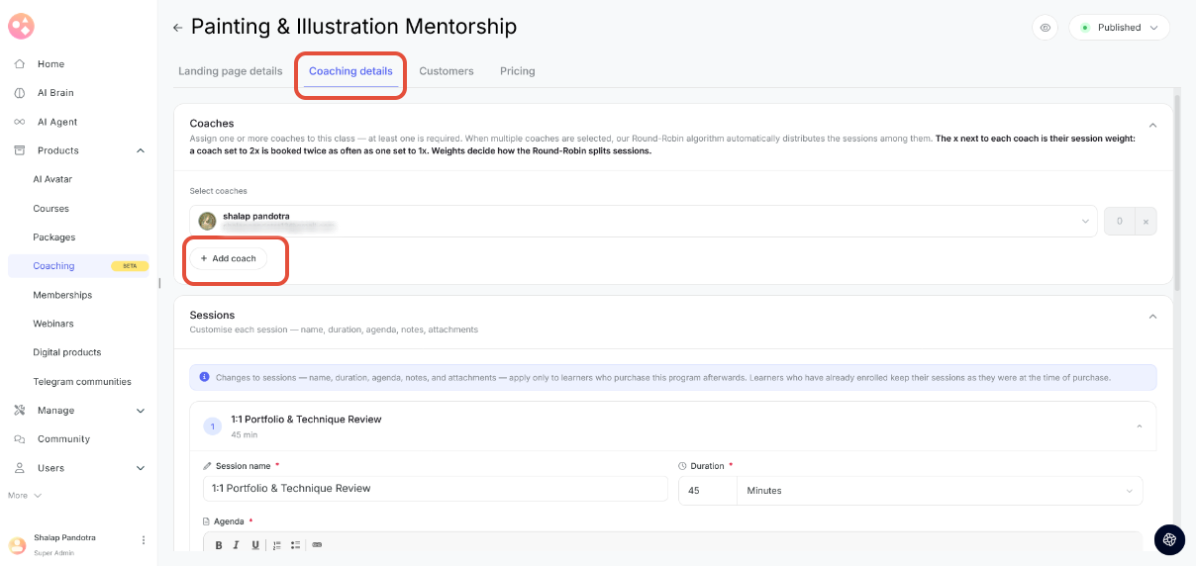
You'll find the Coaches card in Coaching -> Programs -> [Your Program] -> Coaching Details -> Coaches.
- Click on "Add Coaches" to open the picker.
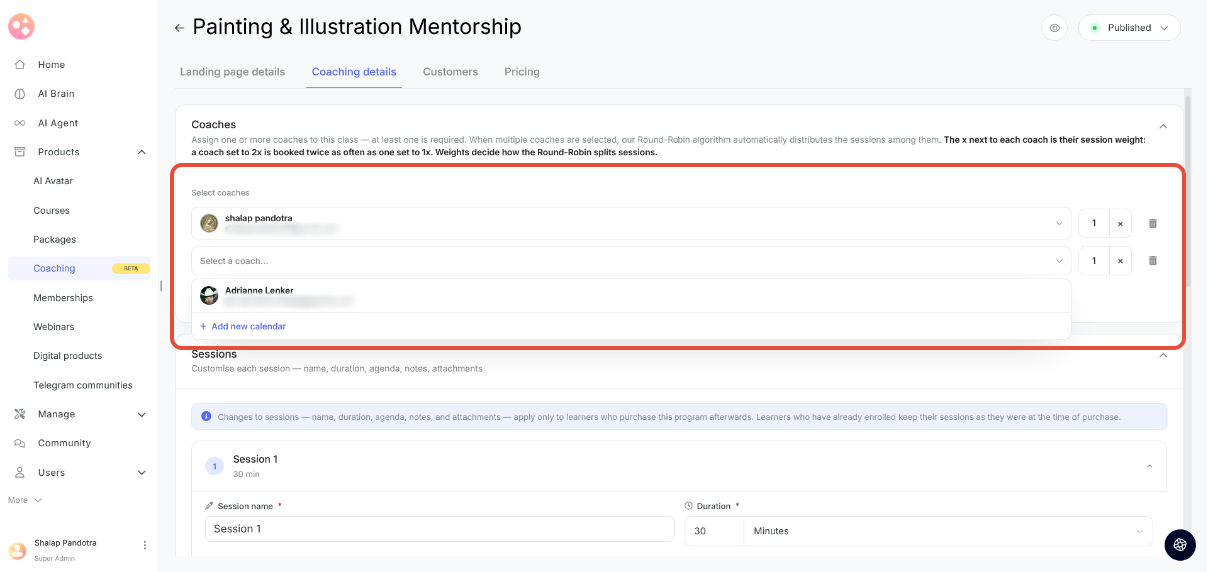
- Select your desired coach from the drop-down (or click on "+Add new calendar" to add a new coach).
- The picker closes and you see a success pop-up.
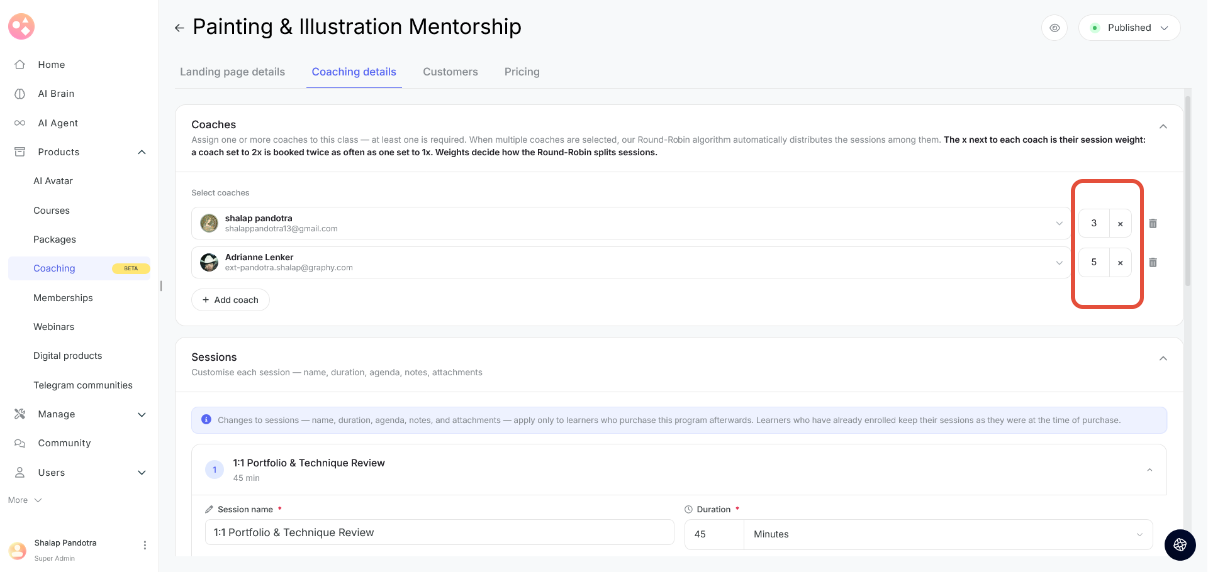
Once closed you can see the coach's name, email. You can assign a weight (any number between 1 to 10) to the coach which is set to 1 for all coaches by default. More weights would mean that that coach gets more bookings as compared to someone with less weight. It is using these weights that our algorithm decides between different coaches and automatically assigns different sessions to them.
No Google Calendar connected yet? If none of your coaches have a calendar connected, the picker won't appear. Instead, you'll see a Connect Google Calendar button — connect a calendar first (via + Add new calendar), then the coach picker becomes available. (refer to this article for further help regarding connecting your coaches' calendars)
Note: Changing the coaches assigned to a program applies to new and rescheduled sessions only. Existing bookings stay with the coach they were originally booked with.
In detail- how sessions get assigned
When more than one coach is selected, sessions are distributed based on each coach's weight — coaches with a higher weight end up with a proportionally larger share of sessions over time. If every coach is left at the same weight, sessions split evenly between them.
A few important things to know about how this behaves:
- Weight decides share, not availability. Even if one coach happens to be free far more often than the others, they don't get extra sessions for it unless their weight is set higher.
- Busy coaches are skipped, not paused. If a coach isn't free at a given time, that session goes to next available coach instead, and the system continues distributing sessions from there.
- If every selected coach is busy at a given time, that time slot simply won't be shown as available to book.
Scenarios and Coach assignment process
Scenario | Result |
|---|---|
| 3 coaches, all at equal weight, 4 sessions booked | Split is done evenly (2, 1, 1 across the group) |
| Coach A with a higher weight than Coach B | Coach A ends up with proportionally more sessions than Coach B over time |
| 3 coaches, all at equal weight, one session lands when a coach is busy | That session goes to another available coach instead |
| 3 coaches, all at equal weight, one coach has much more open availability | Still splits roughly evenly — availability alone doesn't earn extra sessions, only weight does |
| 1 coach selected | That coach gets every session |
Changes after bookings exist
- Removing a coach: Existing bookings stay with their original coach. The removed coach simply won't be given any new sessions going forward.
- Rescheduling: If a learner reschedules, they keep the same coach as long as that coach is free at the new time. If not, the session goes to the next available coach.
- Cancellations: If a booked session is cancelled, that slot opens back up, and the rotation simply continues from where it left off. For example, with 4 coaches booked in order (1 → 2 → 3 → 4), cancelling Coach 1's session doesn't restart the rotation — it just continues from Coach 2.
What learners see
Learners don't pick a coach and can't see which coach is attached to a session while booking- the booking calendar only shows available times, and the coach is assigned behind the scenes by our algorithm.
Once the booking is confirmed, the learner is told which coach they've been assigned in their booking confirmation email.
Was this article helpful?
That’s Great!
Thank you for your feedback
Sorry! We couldn't be helpful
Thank you for your feedback
Feedback sent
We appreciate your effort and will try to fix the article