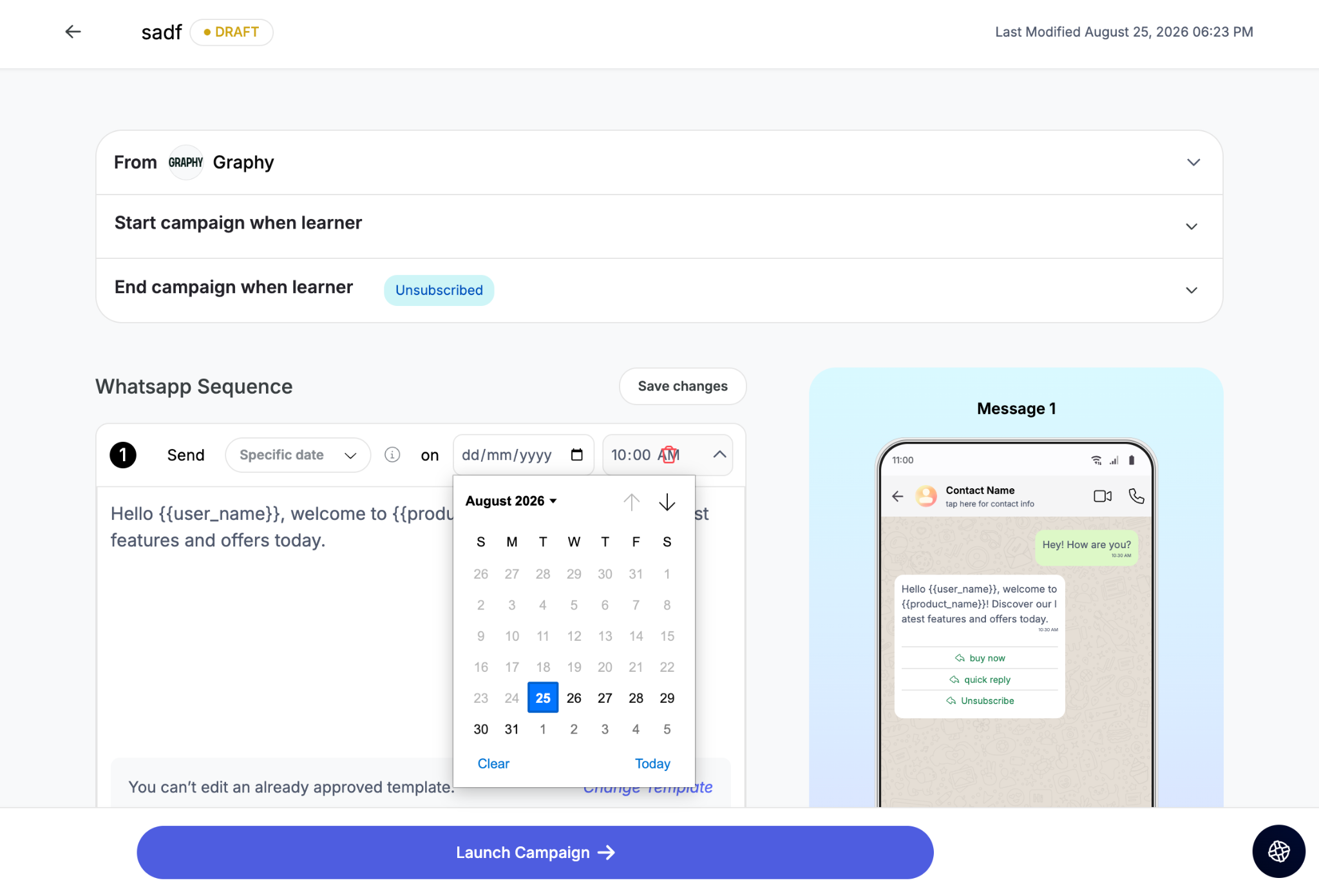
Earlier, trigger-based campaigns could only be scheduled relative to the trigger event — 1 day after, 2 days after, and so on. You can now set specific calendar dates instead, like 14th August or 16th August.
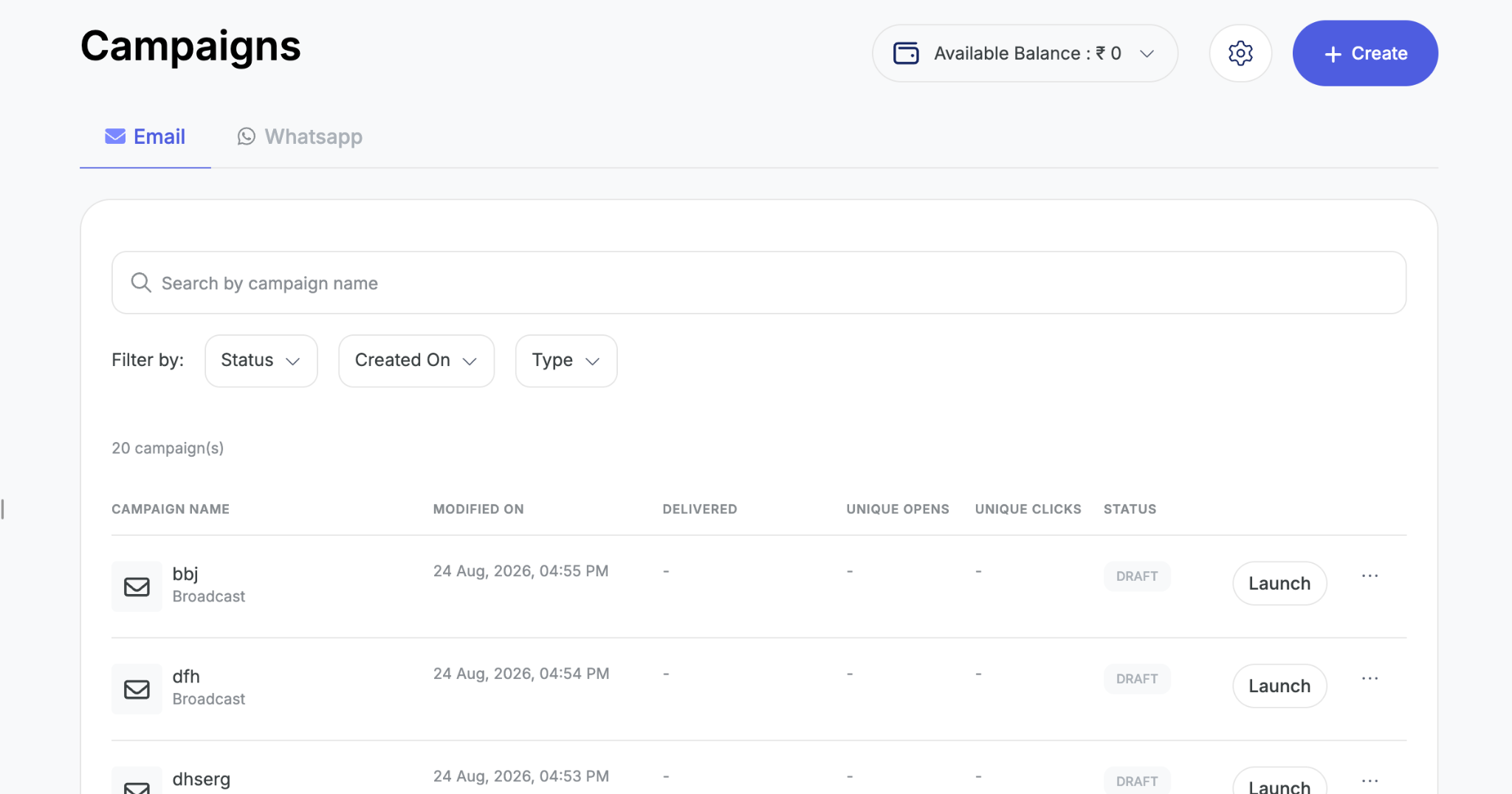
1. Go to Marketing → Campaigns and click Create.
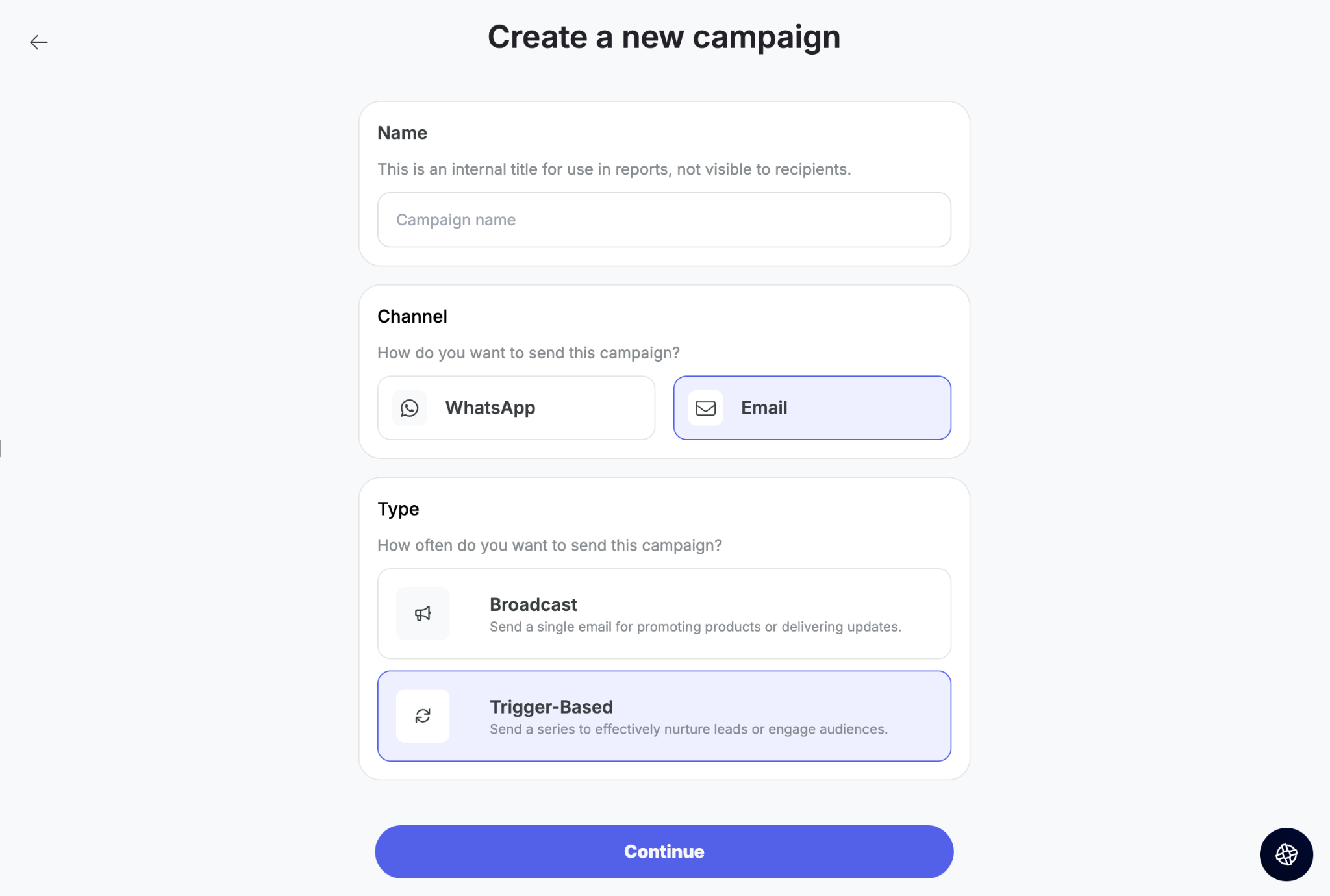
2. Select Email, then choose Trigger-based.
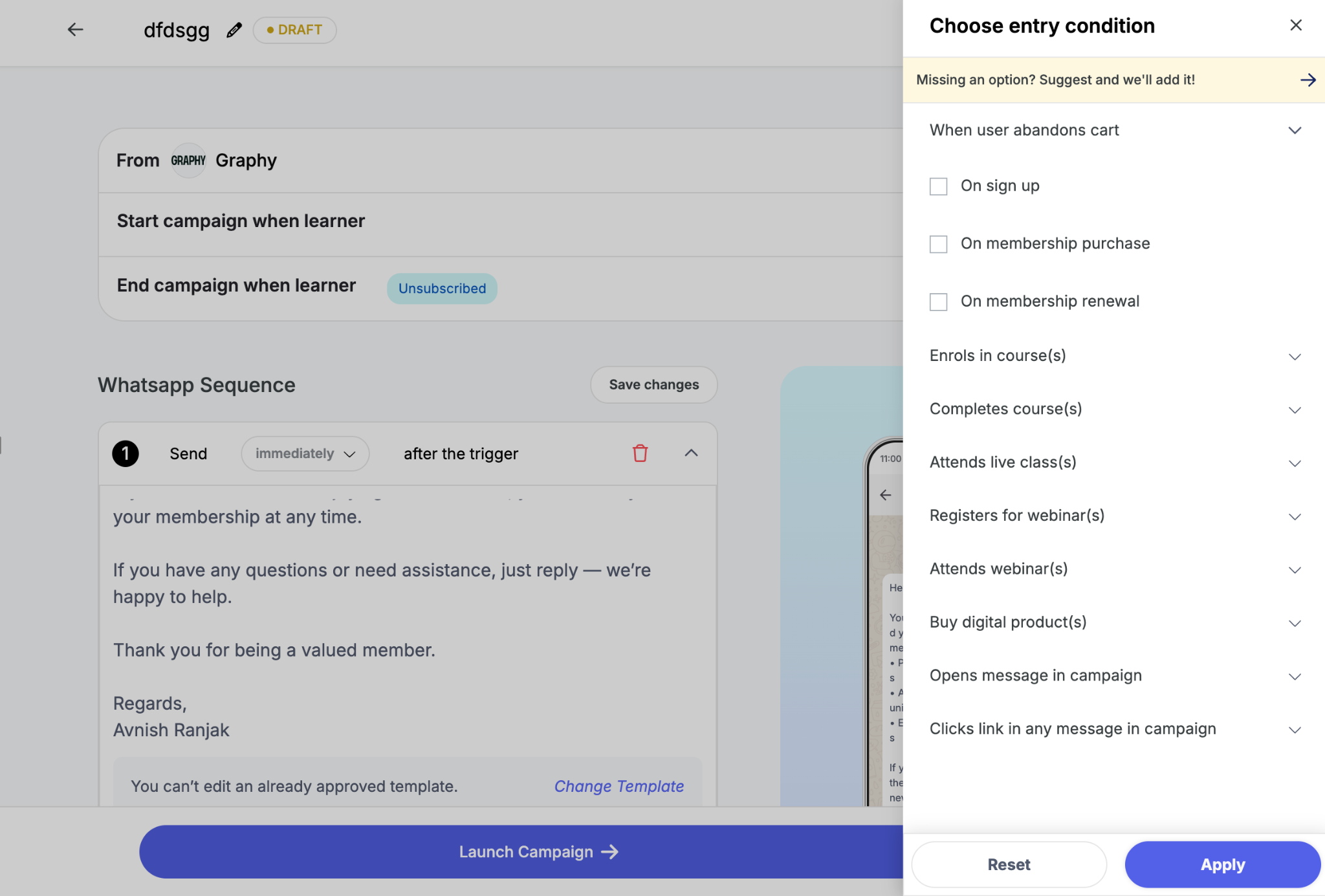
3. In the To section, select the triggers that will start the campaign — for example, User purchased a course.
4. Go to the Send section and choose Specific date under date options, then set your date and time.
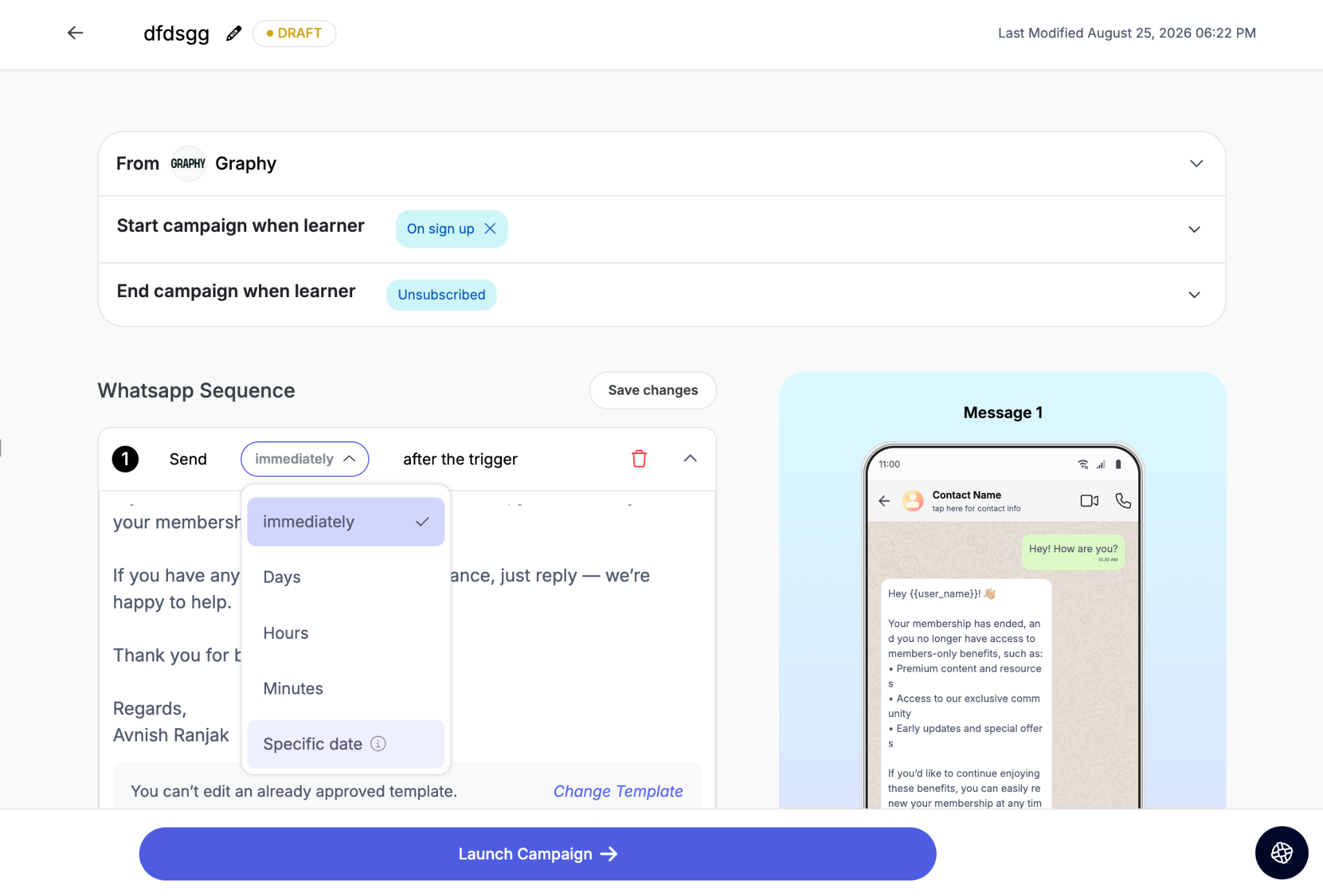
5. Add more dates as needed. Dates must be in ascending order — each subsequent date has to be later than the one before it.
How recipients receive messages
A user gets one email per date they qualify for. If a user qualifies for emails set on the 15th, 16th and 17th, they receive three emails. If they only qualify for the 16th and 17th, they receive two.
Was this article helpful?
That’s Great!
Thank you for your feedback
Sorry! We couldn't be helpful
Thank you for your feedback
Feedback sent
We appreciate your effort and will try to fix the article