Community now supports a second kind of channel called Feed, which sits alongside the Chat channels you already know. Chat is built for real time conversation, where messages move quickly and aren't meant to be revisited later. Feed works differently. It's meant for things worth posting once and coming back to, like announcements, polls, questions, or resources, that members can browse through and revisit whenever it suits them.
This article walks you through what a Feed channel lets you do, how to create one, what kinds of posts it supports, the level of control you have over it as an Admin, and how posting works in a feed.
What can you do with a Feed channel
Once a Feed channel exists inside a Club, members can post to it (if allowed), react to posts, comment on them, and repost something into another channel with their own comment attached. Every Club can hold any mix of Feed and Chat channels, up to 15 channels in total, so you can organize your community in whichever way suits it best, whether that means a Feed channel for updates and a Chat channel for live discussion, or several of each.
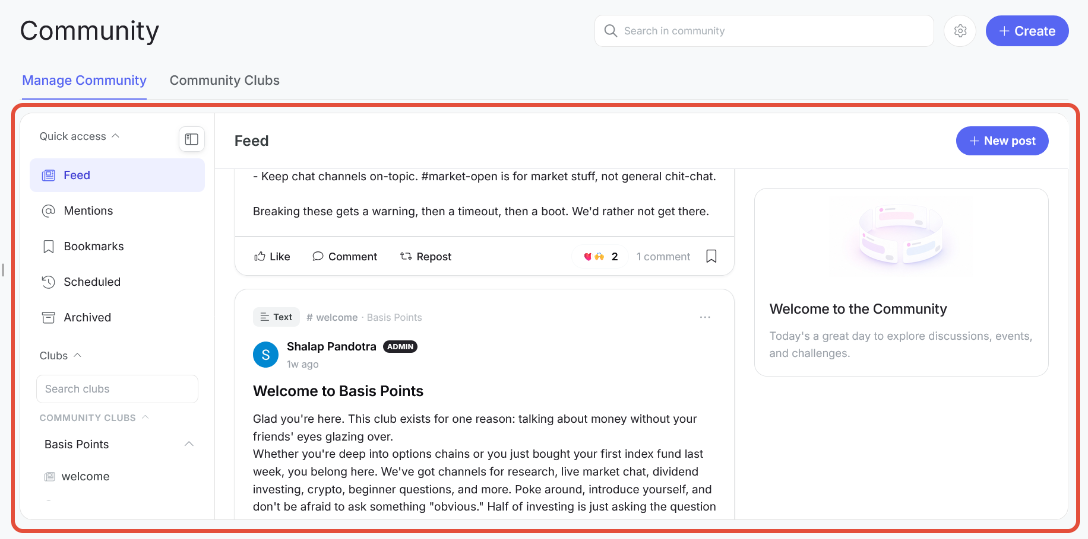
What a feed channel looks like
Local Feeds and the Global Feed
Each Feed channel you create lives inside a specific Club, and any post published there shows up in that channel just like you'd expect. At the same time, every post also appears in the Global Feed, which lives under Quick Access, which pulls together posts from every Feed channel a member has access to, across all the Clubs they're part of, into a combined timeline. This means a member can catch every post in one place, without having to jump between Clubs, while still being able to visit a specific channel to focus on just that conversation.
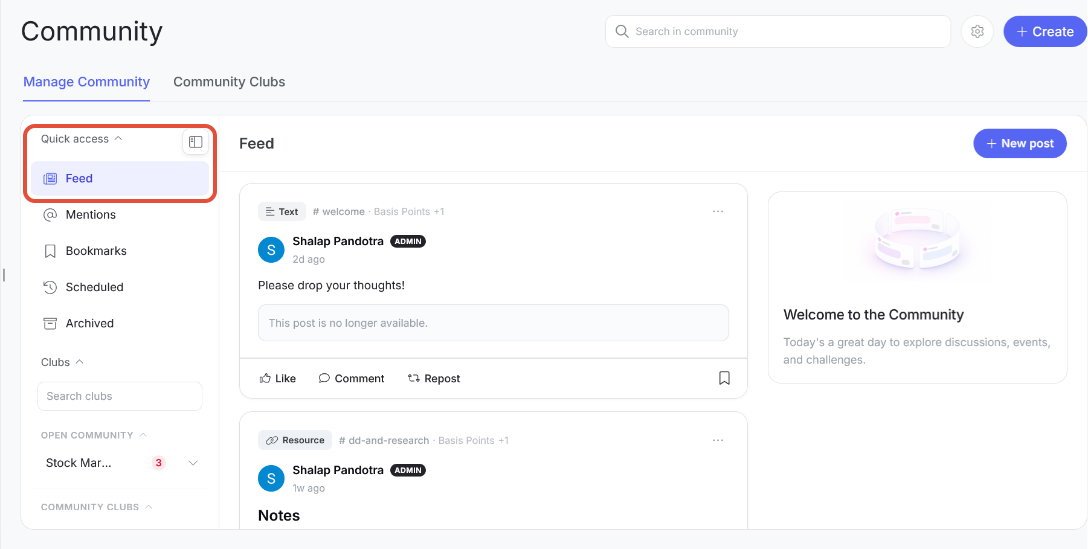
Global Feed Channel
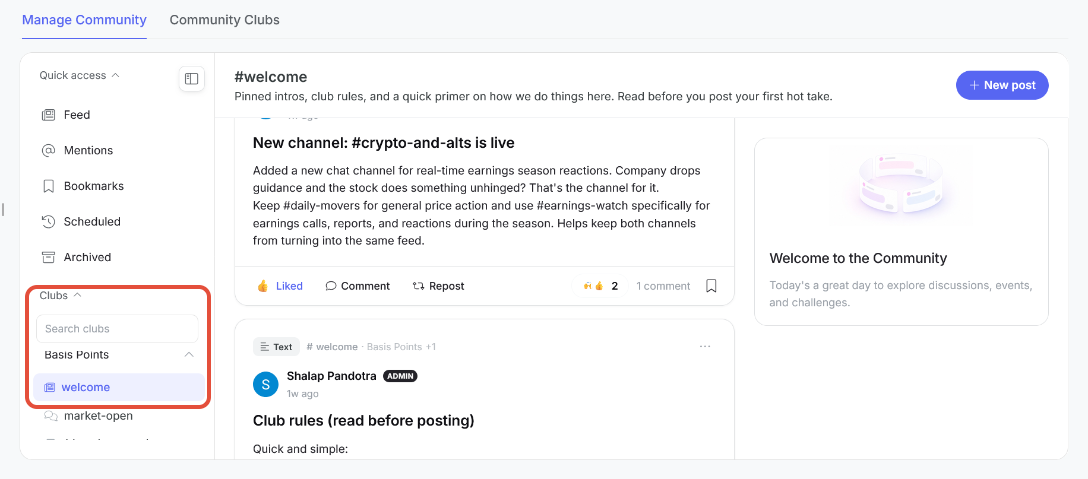
Local Feed Channel
How to create a Feed channel
From a Club in the left rail, click the plus icon next to the Club name to open the New channel screen. From there, set the following:
- Channel name (required)
- Description, up to 200 characters, explaining what the channel is for (required)
- Channel type: choose the option labeled "Feed" to create a Feed channel
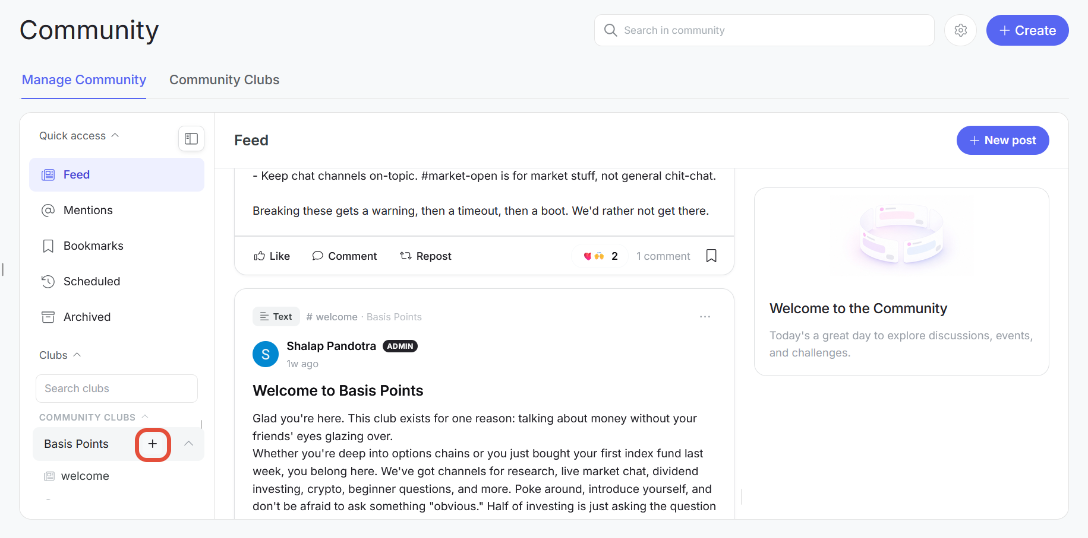
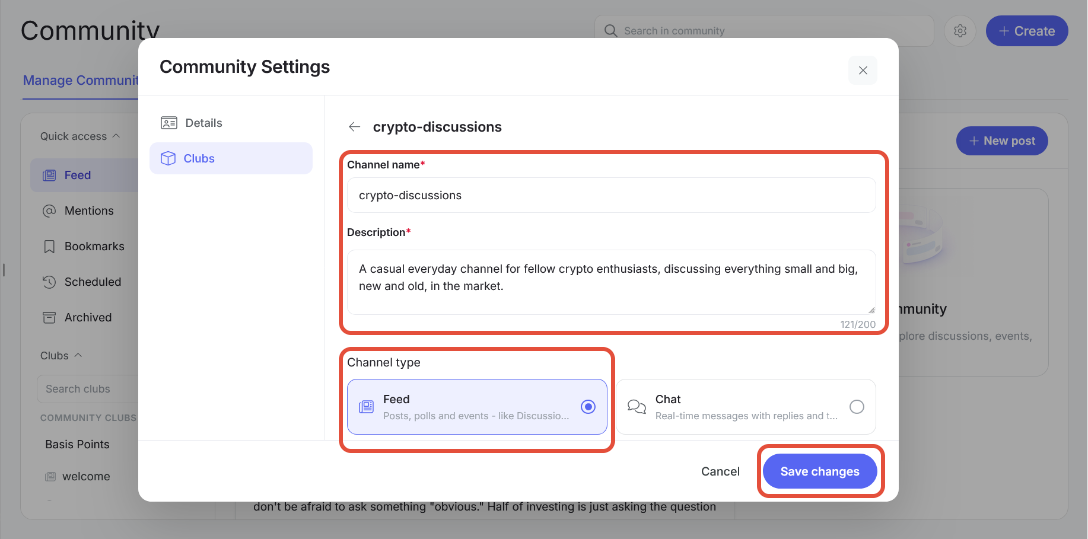
From here you can either click the "Save changes" button to immediately create the channel, or scroll down to configure user permissions.
Note that as an admin you can configure and change these settings at any point after creating the channel as well.
Post types
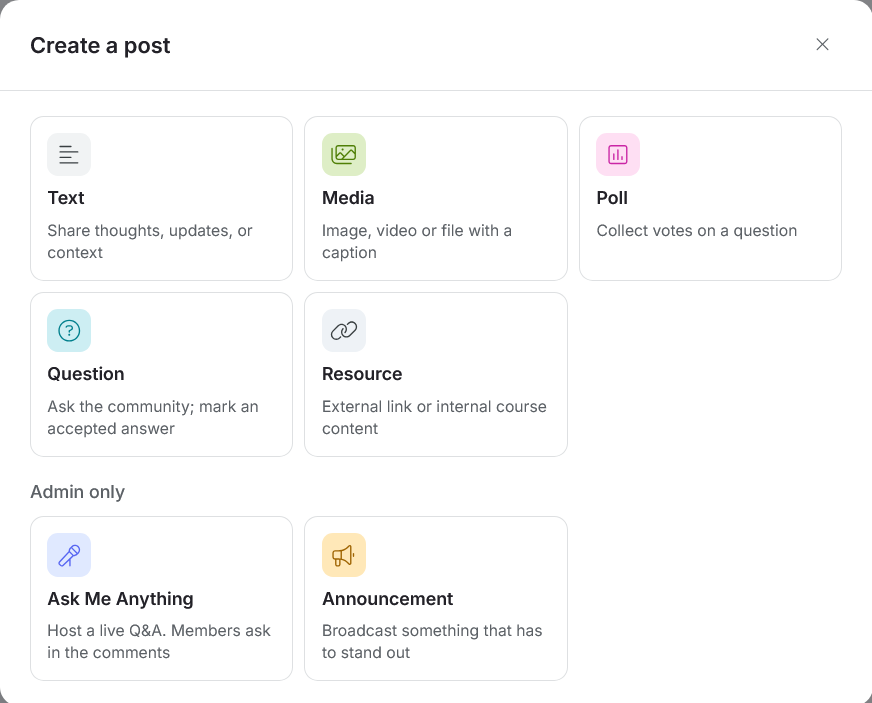
Before configuring your channel it is important to understand post types. A Feed channel supports seven different kinds of posts and, by default, a member can only five of those 7 post typesAs an admin, however, you are able to control what type of post a member is allowed to make in a particular channel. The types that a Feed currently supports are:
- Text: An optional title and a body, where someone shares their thoughts in writing.
- Media: The same as a Text post, but with up to five files attached alongside a caption.
- Poll: A question with two to six answer options, along with a duration that sets how long voting stays open.
- Question: A question with optional extra context, which also stays open for a set duration.
- Resource: A link or piece of content, along with a title and a short description explaining what it is.
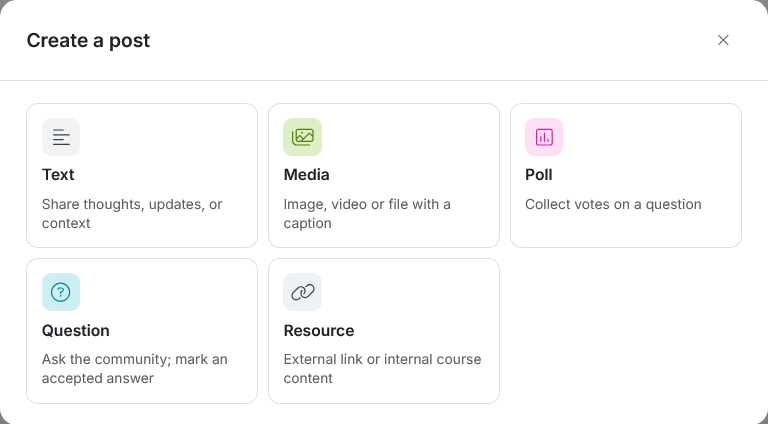
All the different post types that a learner has access to
Admins and moderators also get two more post types that members can’t create:
Ask Me Anything: A live Q&A session, where members ask questions on the post and you answer them for a set duration.Announcement: A post for important updates, which also appears as a pop-up when members open Community.
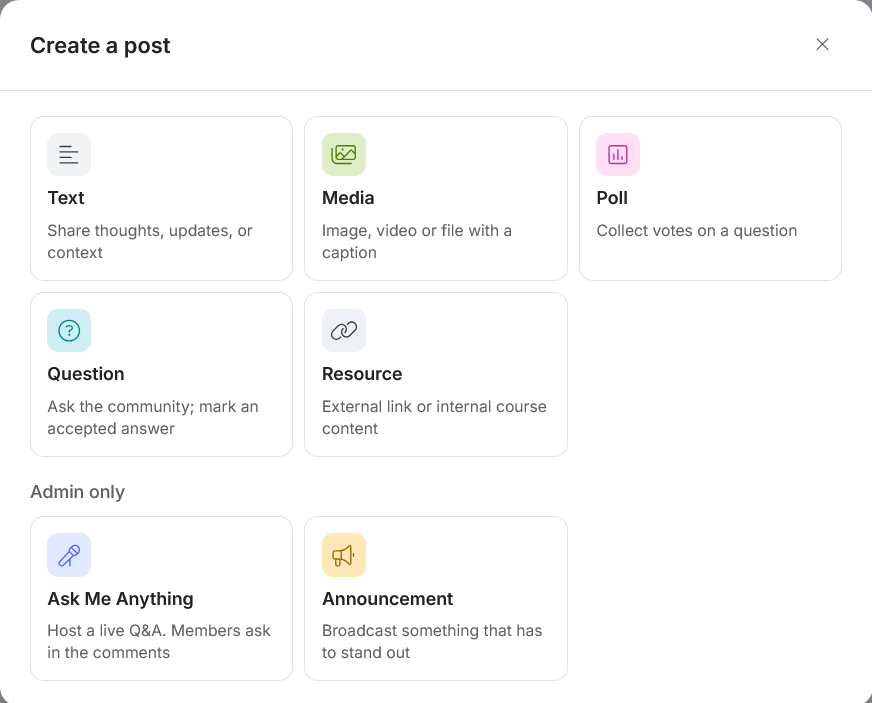
What you see as an admin/moderator
To see how these post types work, you can refer to these articles:
What kind of control you have as an Admin
Every Feed channel has its own panel for deciding exactly what members are allowed to do inside it:
- Post: Turn posting on or off; when it's off, members can still read the channel but can't start new posts.
- Post types members can create: Choose which of the five post types members are allowed to use, toggled individually for each one.
- Comment & reply: Decide whether members can comment on posts and reply to comments.
- React: Decide whether members can react to posts.
- Repost: Decide whether members can quote a post into a different channel along with their own comment.
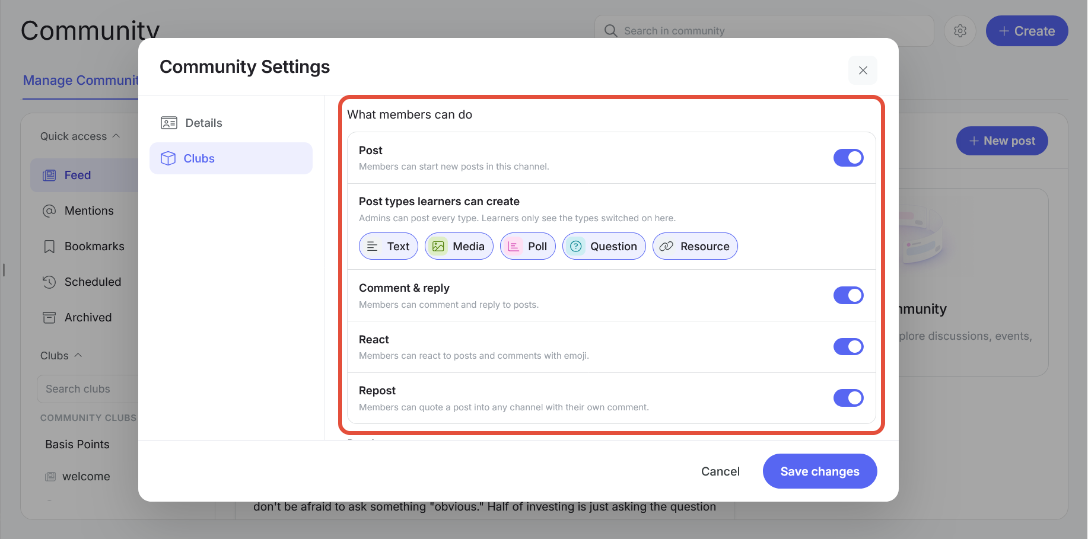
Member permissions you can set as an admin
Note that these restrictions apply only to members. As an Admin, you can always post any type of content in any Feed channel, regardless of how you've configured it for everyone else.
If you'd rather keep a channel one directional, you can restrict posting further, either limiting it to Admins only, or opening it up to Admins and moderators as well.
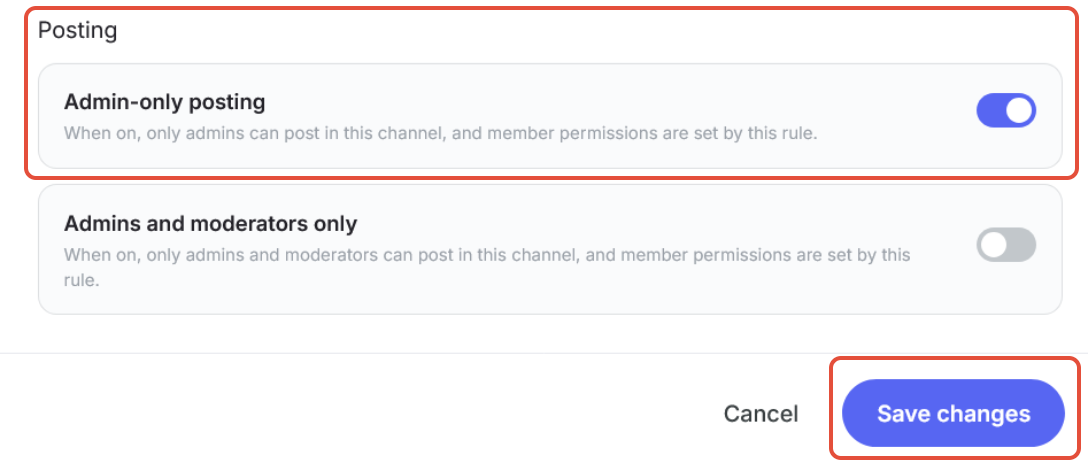
Once the channel is configured the way you want, click "Save changes" to create it.
Making your first post
After saving your changes you will be able to see your newly created channel inside your club.
- To make a post click on the "+ New post" button.
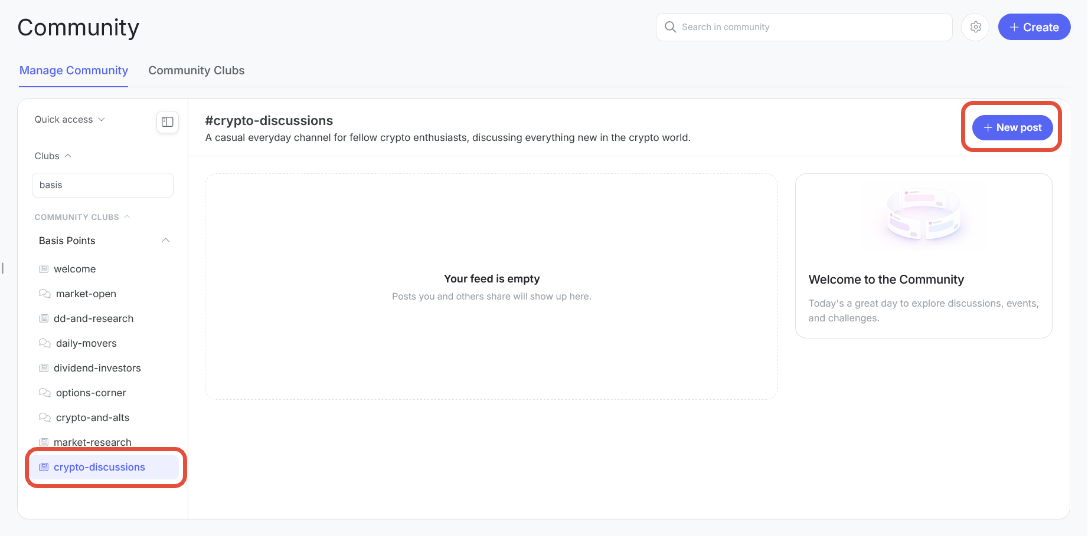
A newly created Feed Channel with no posts yet made
Alternatively you can also make a new post by scheduling it. To do this you can go to Quick Access > Scheduled tab in the left rail. Either way both of these methods follow roughly the same flow.
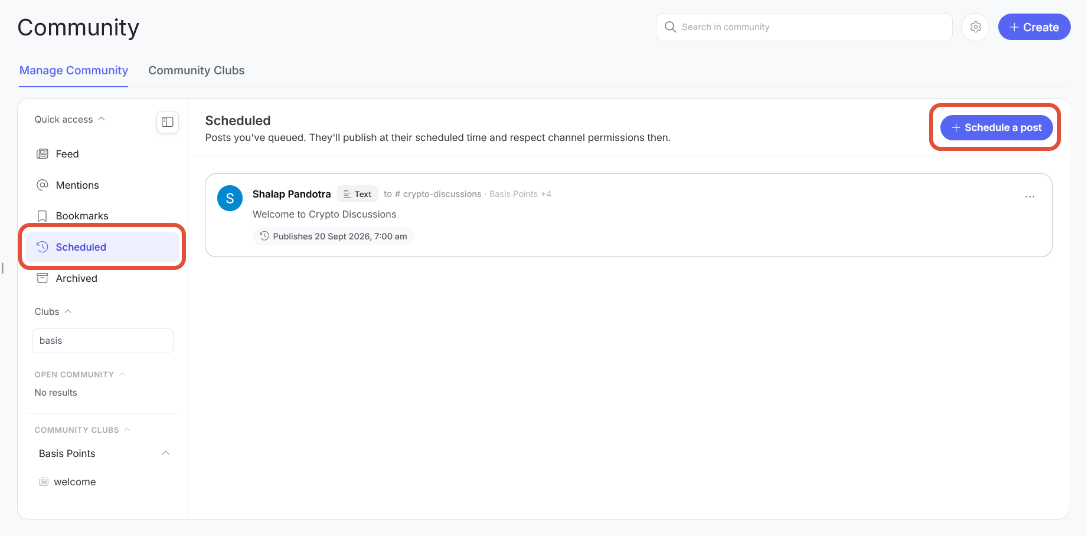
- Choose a post type from the pop-up.
- Select the channels you wish to send the post to (you can select up to 5 channels to send a post to at a time)
- Fill out the required fields.
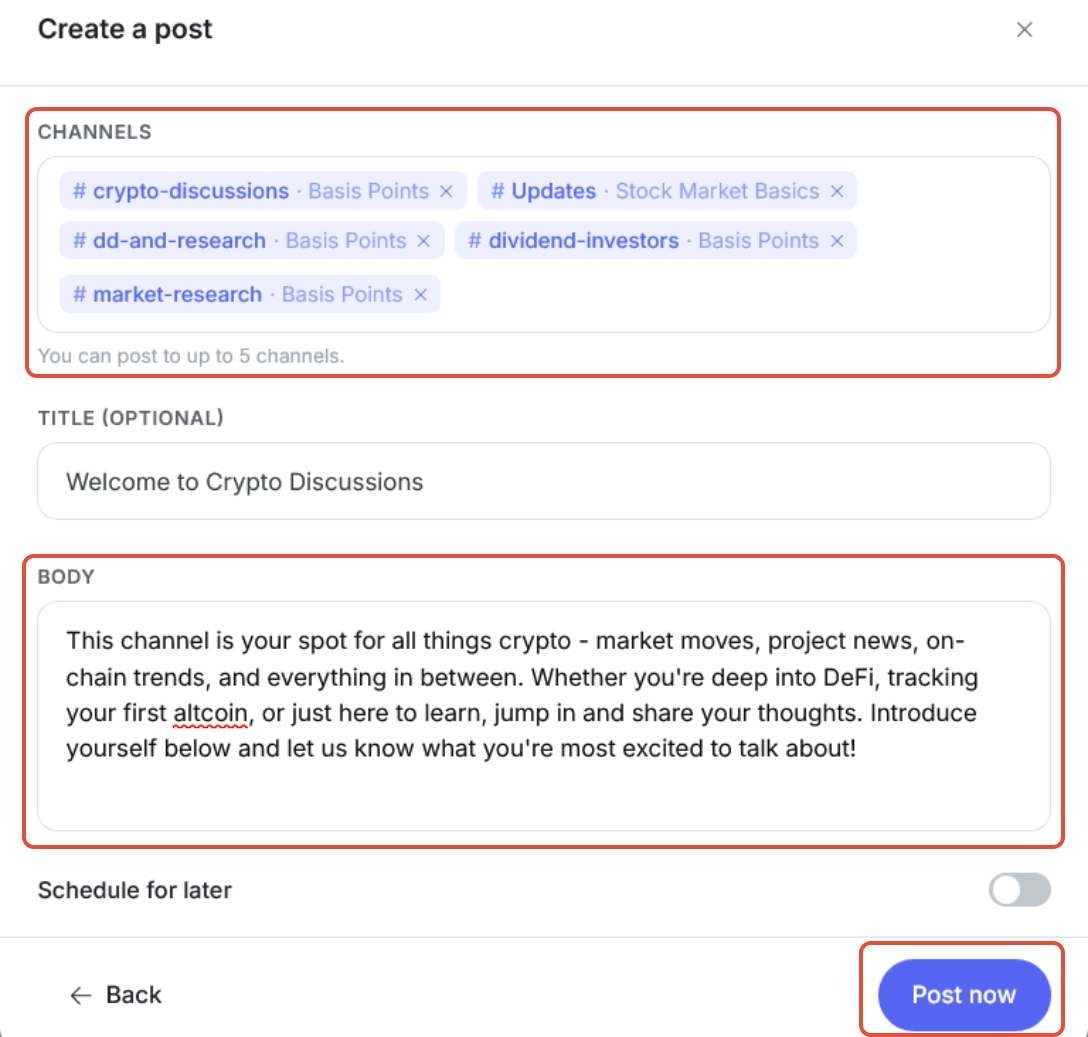
- Click "Post now" to publish the post.
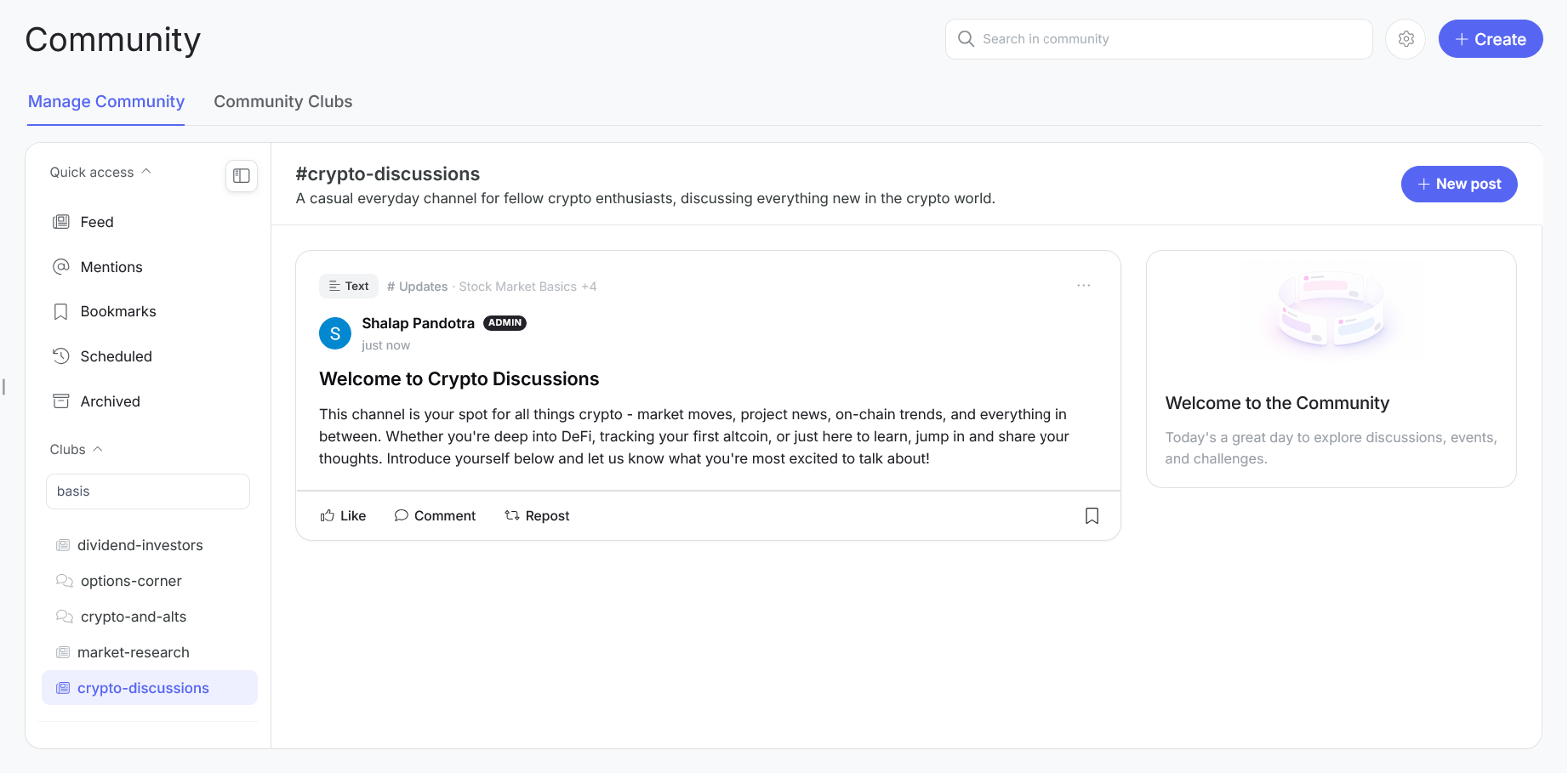
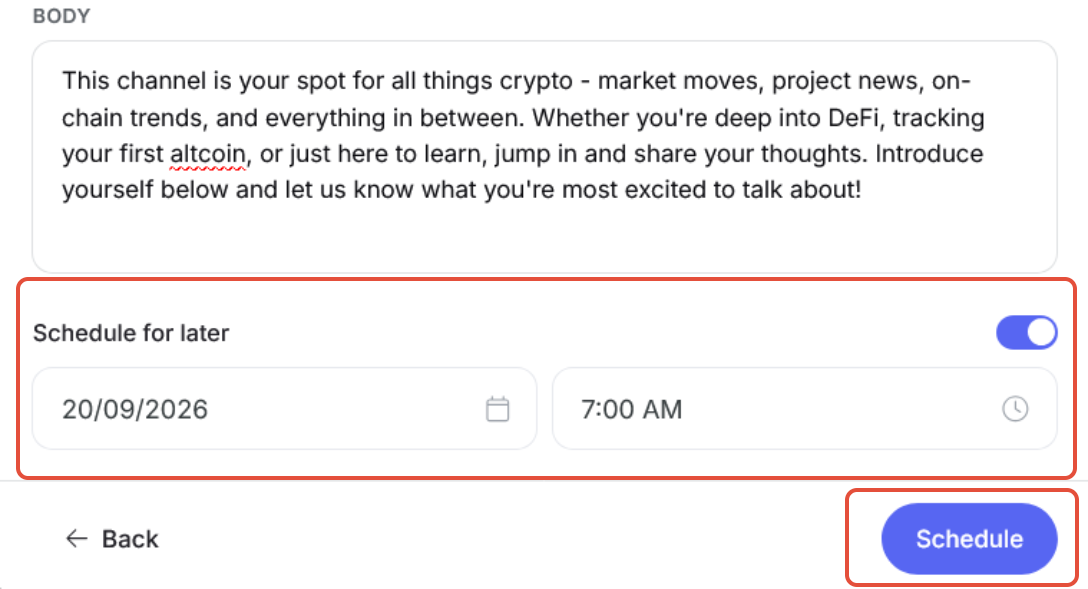
- Alternatively, you can toggle the "Schedule for later" option to schedule the post to go live at a specific date and time.
- Pick a date and time from the date and time pickers that appear. If your post has a duration, it starts counting from this publish time.
- Click the "Schedule" button
A published post
- You will see that your post will now appear in the Scheduled tab inside Quick Access.
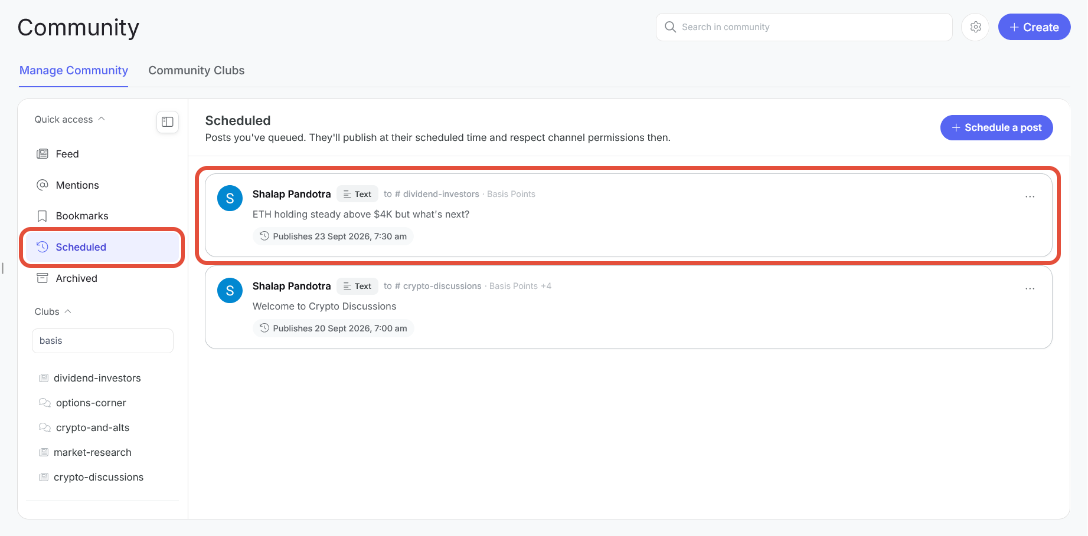
A scheduled post
Was this article helpful?
That’s Great!
Thank you for your feedback
Sorry! We couldn't be helpful
Thank you for your feedback
Feedback sent
We appreciate your effort and will try to fix the article