Feed is a new way to post in Community, alongside Chat. Where Chat is real time messaging, Feed is meant for structured, asynchronous posts of different types that you can browse and revisit anytime.
This article walks you through what you can do with Feed, how to make a post and choose where it goes, and what you can do with a post once it's live. There are some other minor changes we have also made in the community experience, all of which we will also be going over in this article.
What can you do with Feed
Feed lets you post to any channel you have access to, react to posts, comment on them, and repost something into another channel with your own comment attached. You can also bookmark a post to come back to later, or schedule one to go out at a specific time instead of posting it right away.
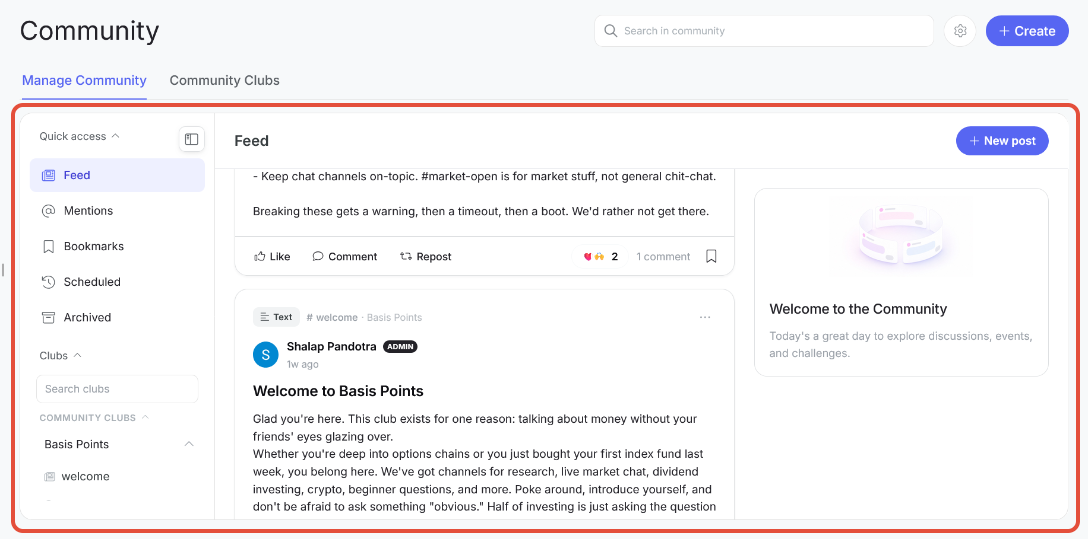
What a feed channel looks like
Local channels and the Global Feed
Every post you make goes to a local Feed channel inside a Club, and shows up there just like you'd expect. At the same time, it also appears in the Global Feed, which lives under Quick Access and pulls together posts from every Feed channel you have access to, across all the Clubs you're part of, into a single combined timeline. This means you don't have to jump between Clubs to keep up with what's being posted; you can catch it all in one place, while still being able to visit a specific channel when you want to focus on just that conversation.
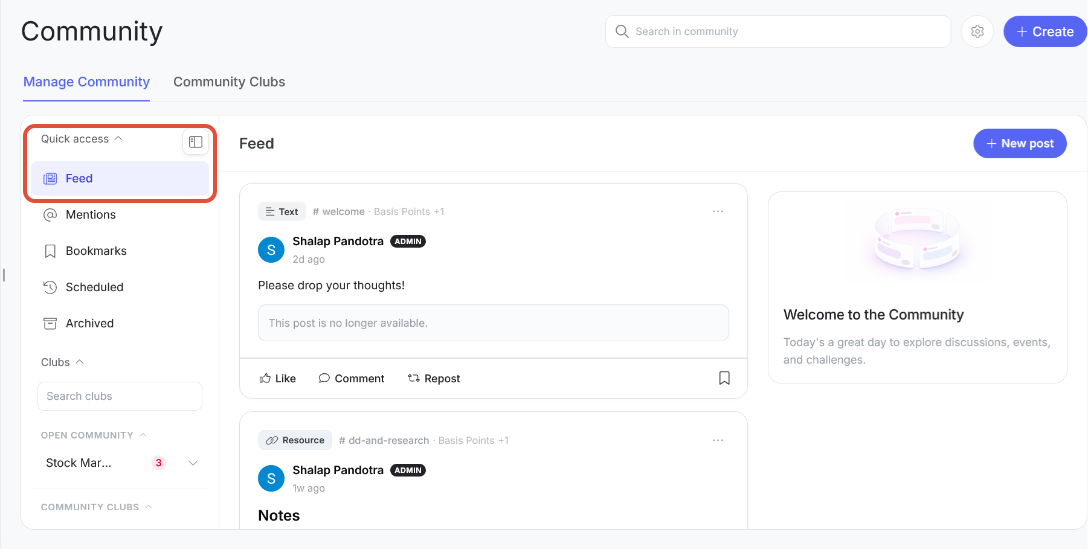
Global Feed Channel
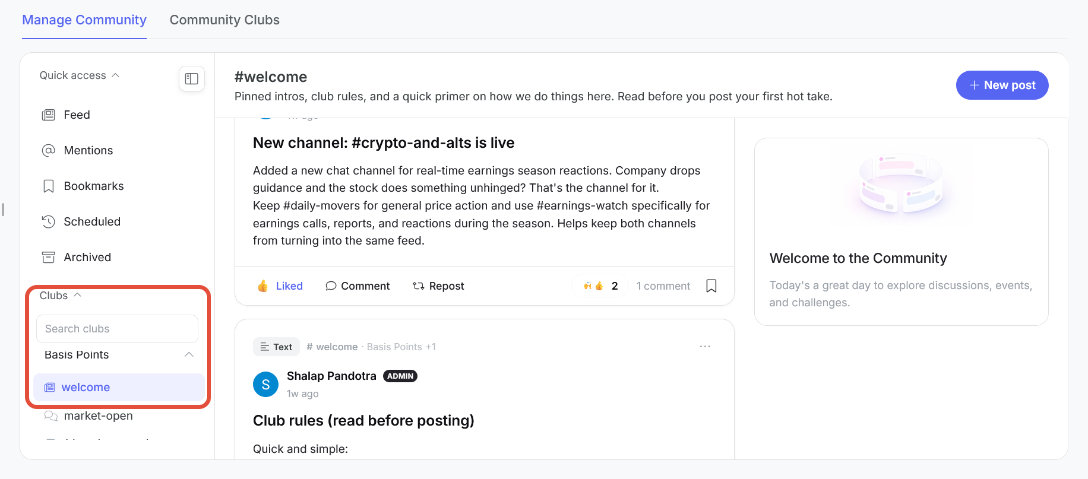
Local Feed Channel
Post types
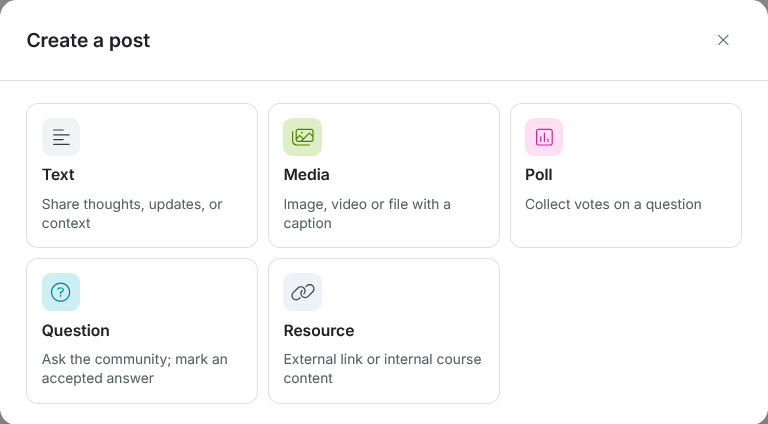
Before making a post, it helps to know what kinds are available. A feed channel currently supports five different post types that you can choose between:
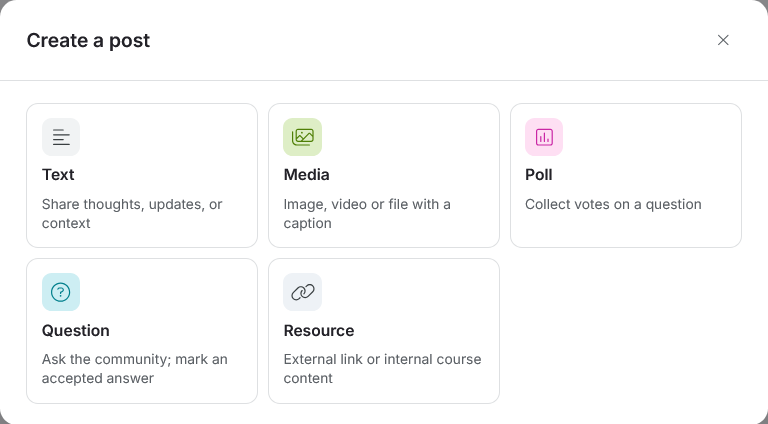
All the different post types that a feed supports right now
- Text: Title (optional), Body.
- Media: Title (optional), up to 5 files, Body/caption.
- Poll: Question, 2-6 options, Closes on (date + time).
- Question: Question, optional context, Closes on (date + time).
- Resource: A URL or content reference, Title, Body.
Only the post types a channel's Admin has enabled for members, will show up in the composer for that channel. For example, if the Admin has only allowed Media and Text posting in a particular channel, that's all you'll see when posting there.
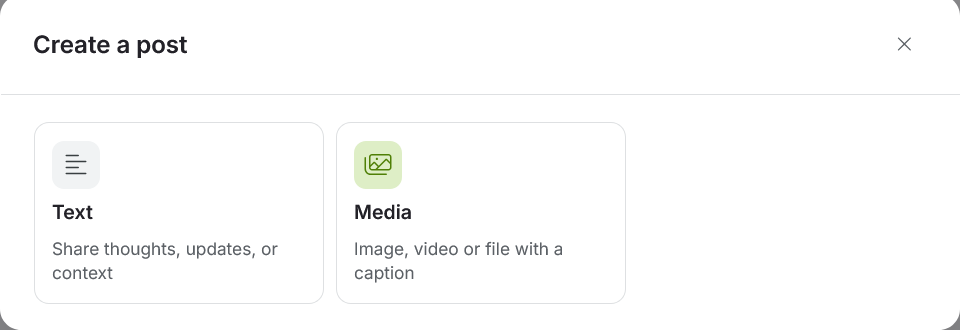
What you see if, for example, the admin only allows certain post types in a certain channel
How to make a post
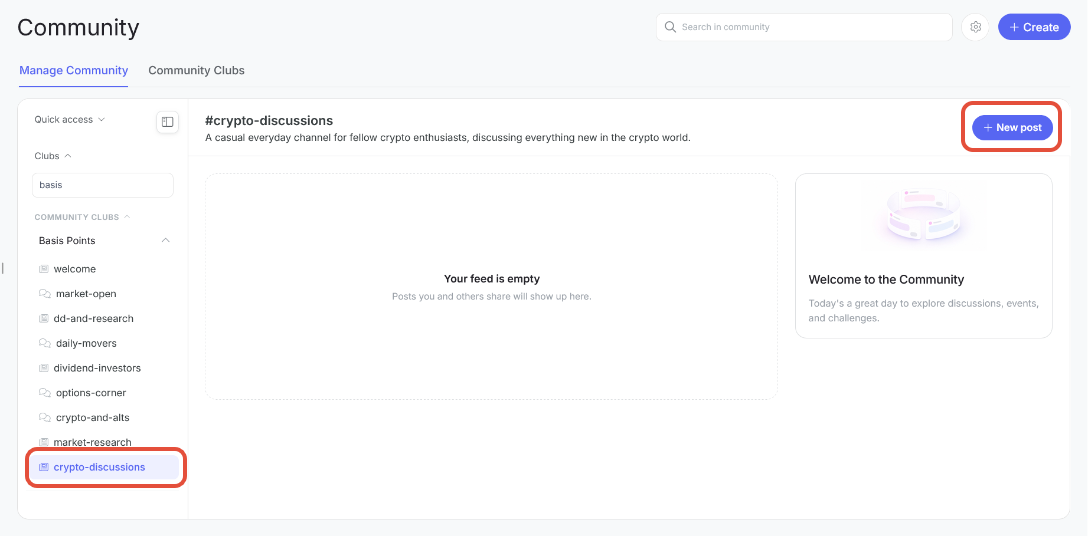
- Click the "+ New Post" button, either from the Global Feed or from inside a Feed channel, to open a two-step composer.
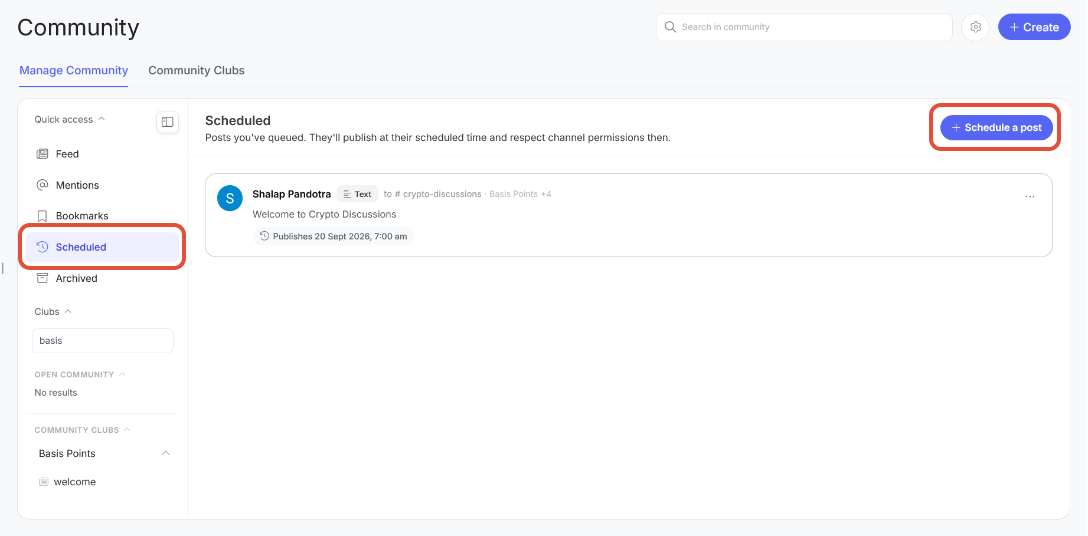
Alternatively you can also make a new post by scheduling it. To do this you can go to Quick Access > Scheduled tab in the left rail. Either way both of these methods follow roughly the same flow.
- Choose one of the five available post types.
- Select the channels you wish to send your post to. A single post can be sent to up to 5 channels across multiple Clubs at once, with each option showing the channel name and its Club. If you open New post from inside a channel, that channel is automatically selected, though it can still be changed or removed. Channels you don't have permission to post to won't appear in the drop-down at all.
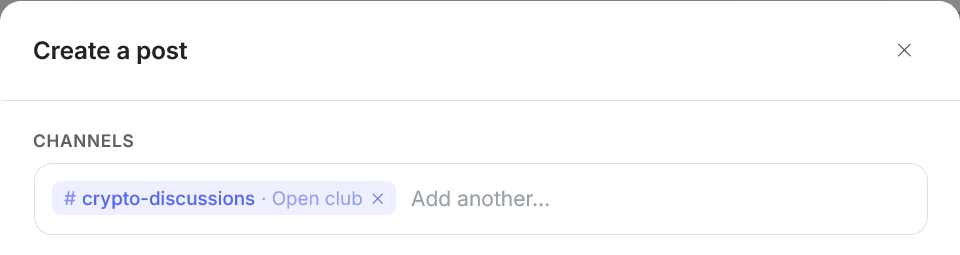
Channel composer
- Additionally, if in the previous step, you chose a post type that is not allowed in some other channel, then, as expected, you wont be able to select that particular channel from the channel drop-down either.
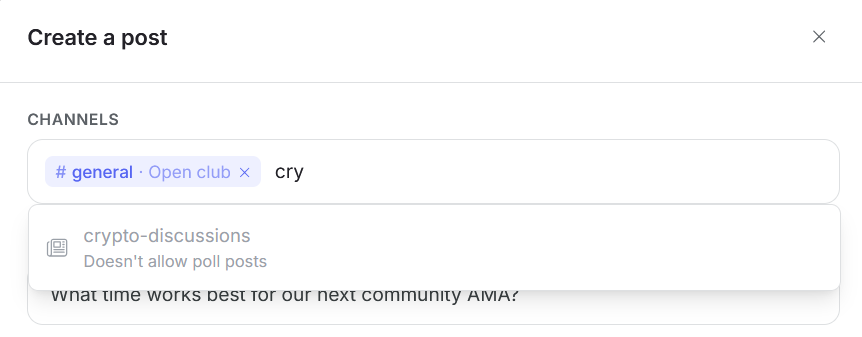
If you try to send a post to a channel that doesn't allow for that particular post type
- Fill out the required fields for the post type you've chosen.
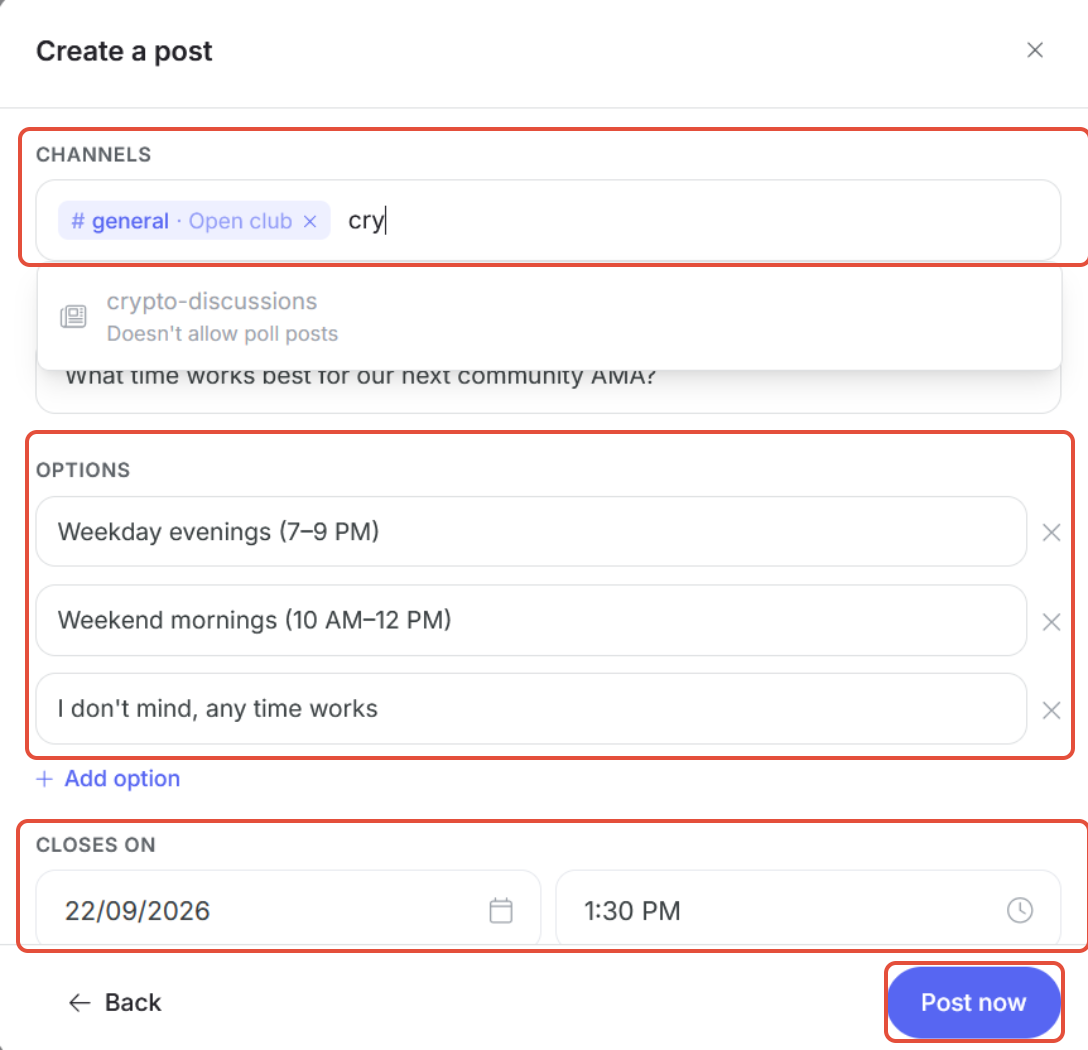
Posting or scheduling
Once you've filled out the post details, you can click "Post now" to publish it right away. Once posted, you'll be able to see which Channels and Clubs it went to.
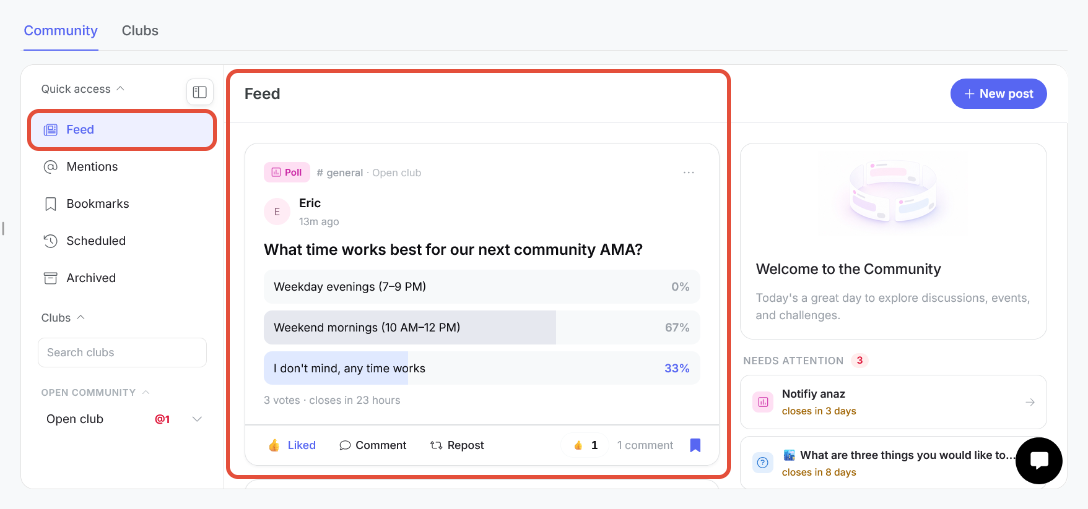
A published post
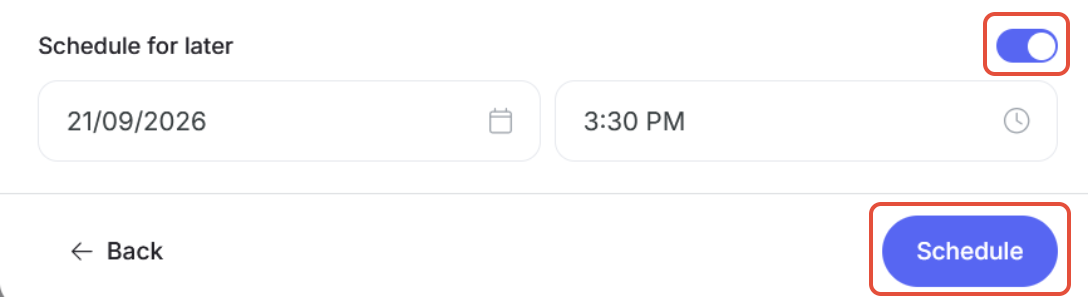
If you'd rather post later, you can toggle the "Schedule for later" option instead, then set a date and time from the date and time picker, and click "Schedule" button to queue it up.
What you can do with a post once it's live
Every post supports a set of actions, whether it's yours or someone else's:
- Like/React, Comment (or Answer, on a Question post), Repost, and Bookmark: Available on every post, regardless of type.
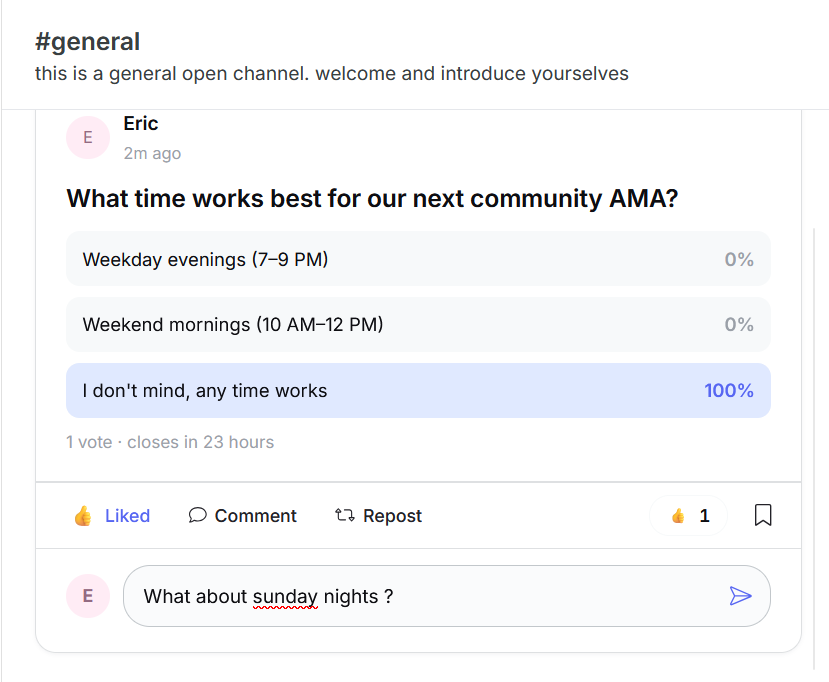
A comment on a published post
Reposting a post
Opens a modal where you choose the destination channel(s), optionally add your own comment, and see the original post previewed below it. A repost is its own post with its own counts, and if you repost a repost, it quotes that repost rather than the original post underneath it.
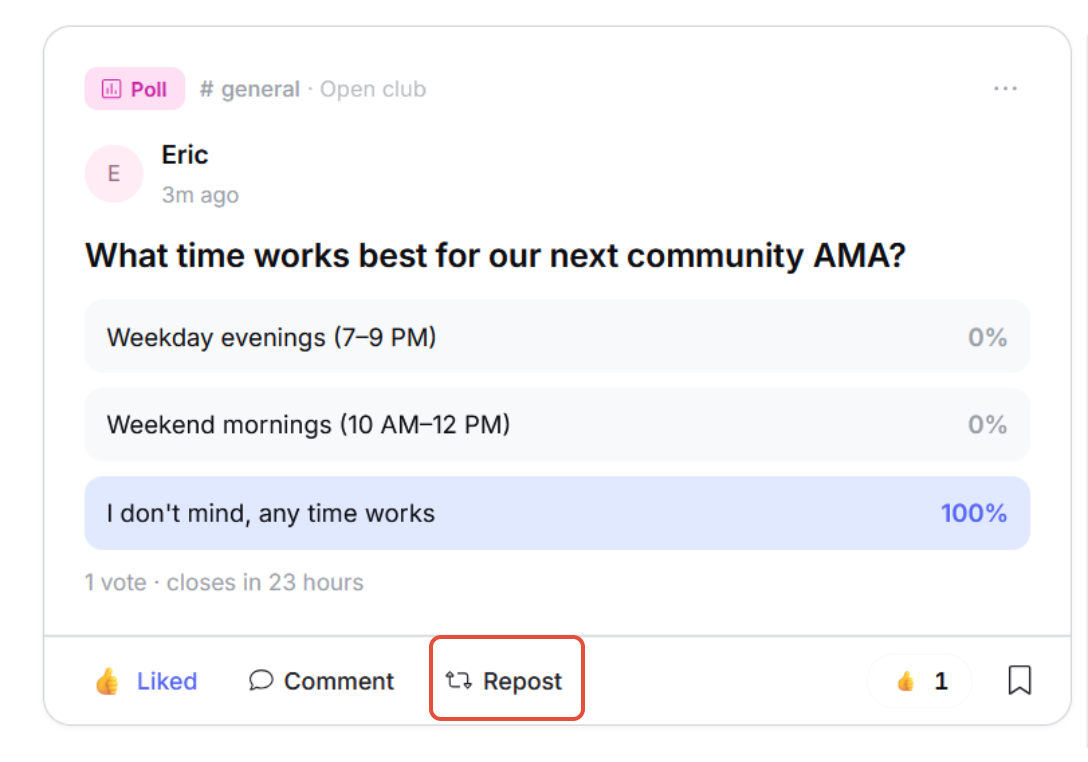
Click the Repost button under any published post
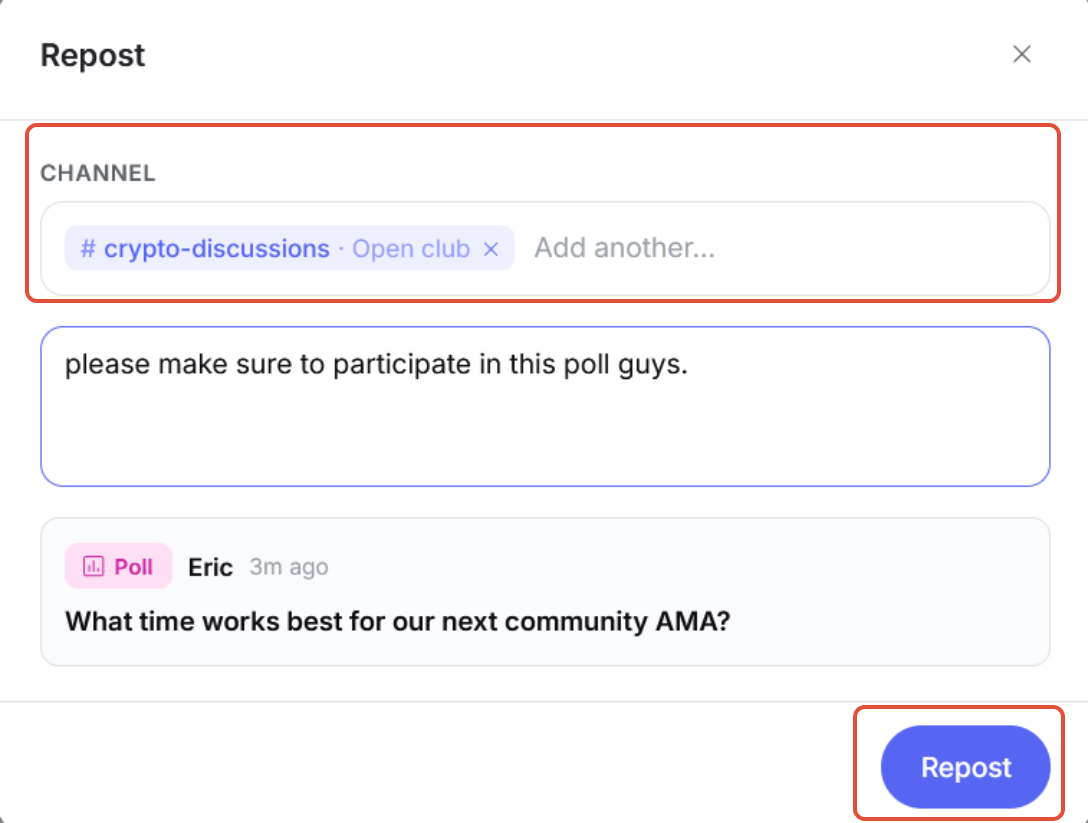
Choose the channel you wish to send the repost to. (optional) add your own comment
A repost
Editing your post
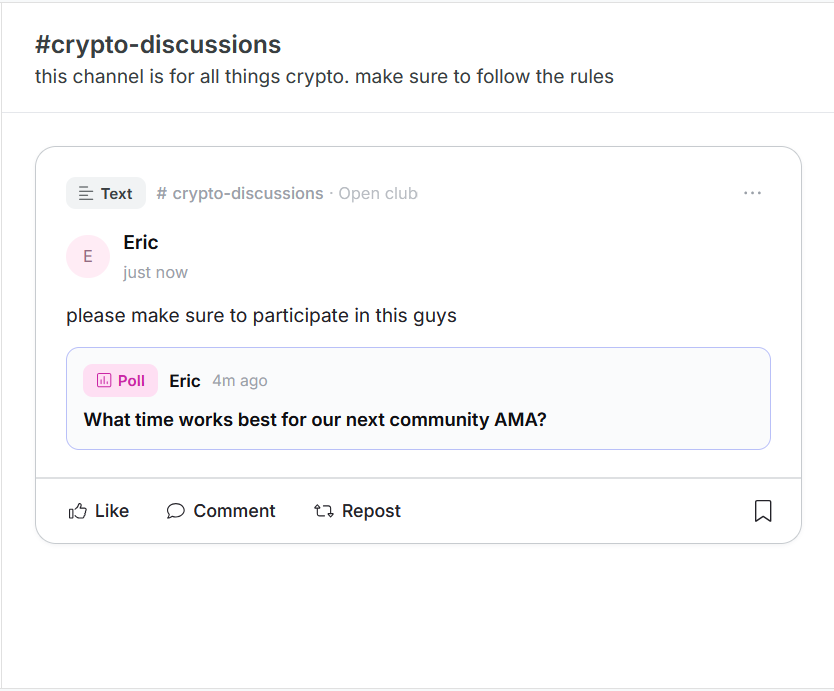
On your own posts, the three-dot menu also gives you Edit post (only if this has been enabled by the Club Admin in Community settings. If not, you won't see the option at all), Copy link, Delete post, and Archive it.
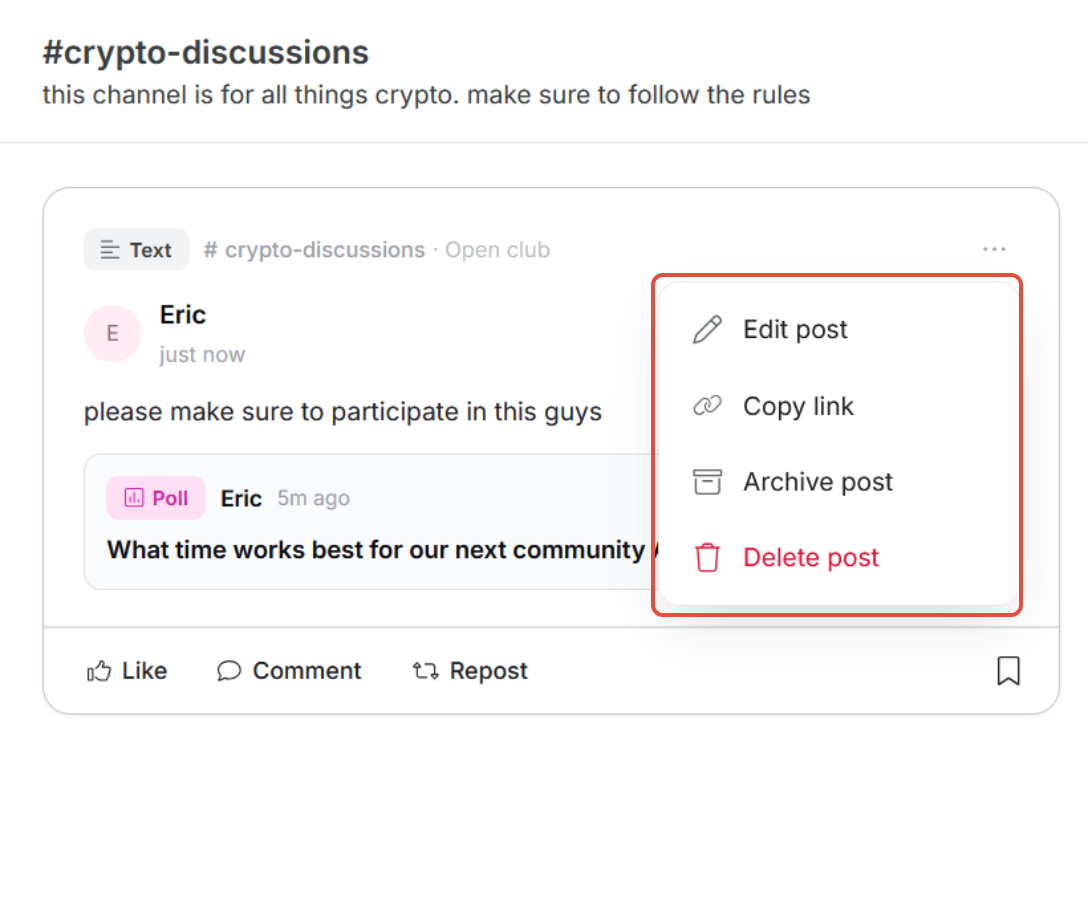
Archived posts
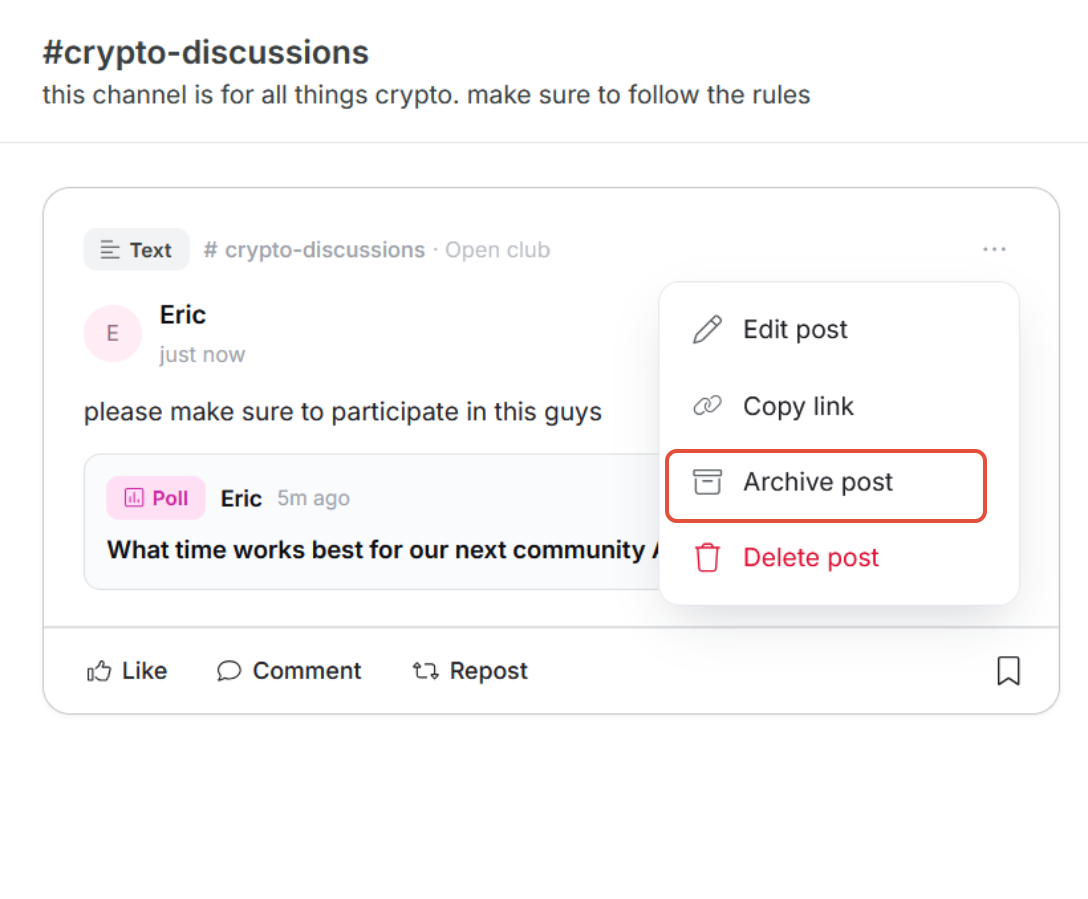
You can archive your own post to remove it off the feed without permanently. To archive a post click the Archive post button from the 3 dot menu button. All your archived posts live in the Archived tab, under Quick Access.
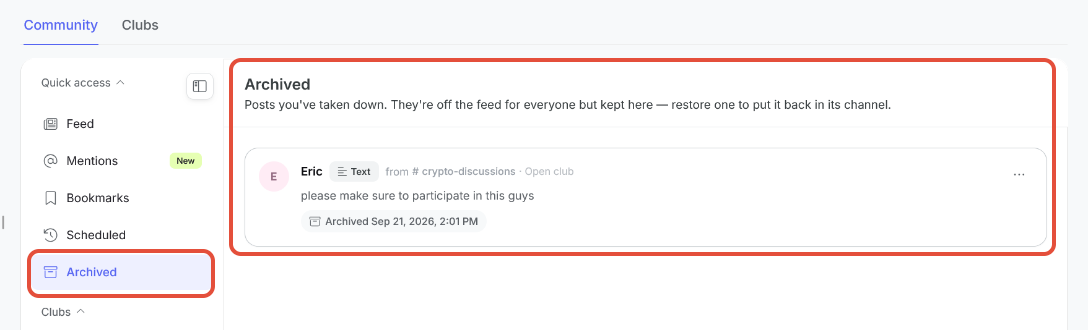
An archived post
From here you can choose to restore or permanently delete the post.
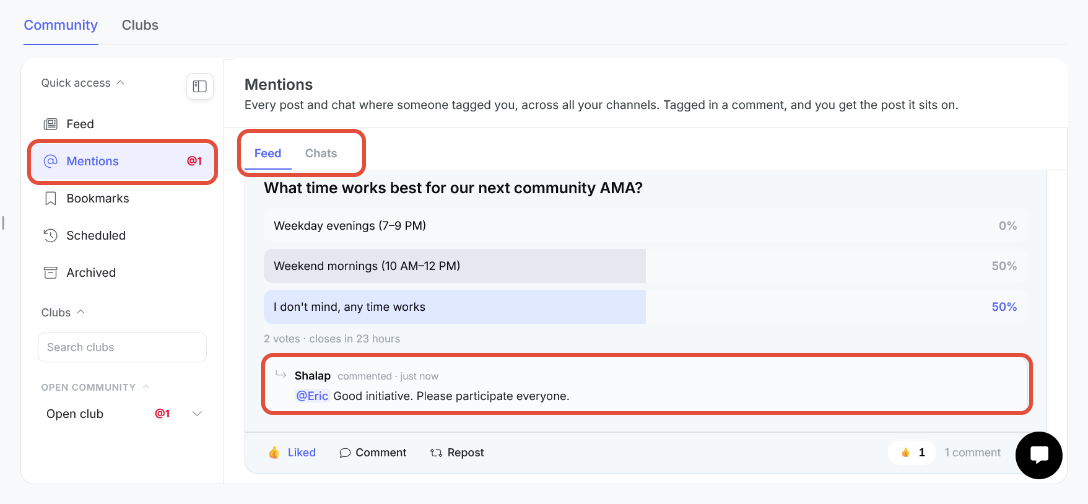
Mentions
Mentions used to only cover Chat, since that was all Community supported. Now that Feed exists as well, Mentions has been split into two tabs, Feed and Chats, so you can look at either on its own. It shows every post and chat where someone tagged you, across all your channels; getting tagged in a comment brings up the post it sits on.
Bookmarks
Bookmarks has been split the same way, into Feed and Chats tabs, so your saved posts and saved chats each have their own place to live instead of being mixed together.
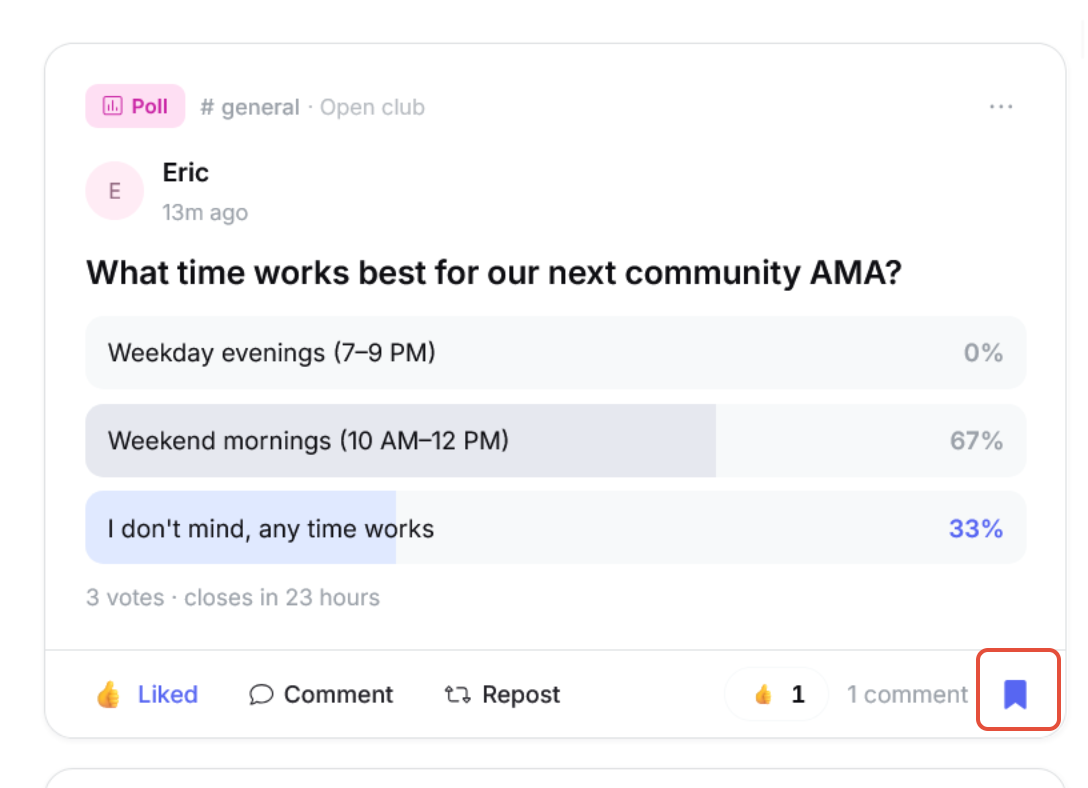
To bookmark a post click the bookmark icon on the bottom right corner of the post.
Then to see all your bookmarked posts, click Quick Access > Bookmarks. Here you can switch between any bookmarked post or chat thread using the tabs at the top.
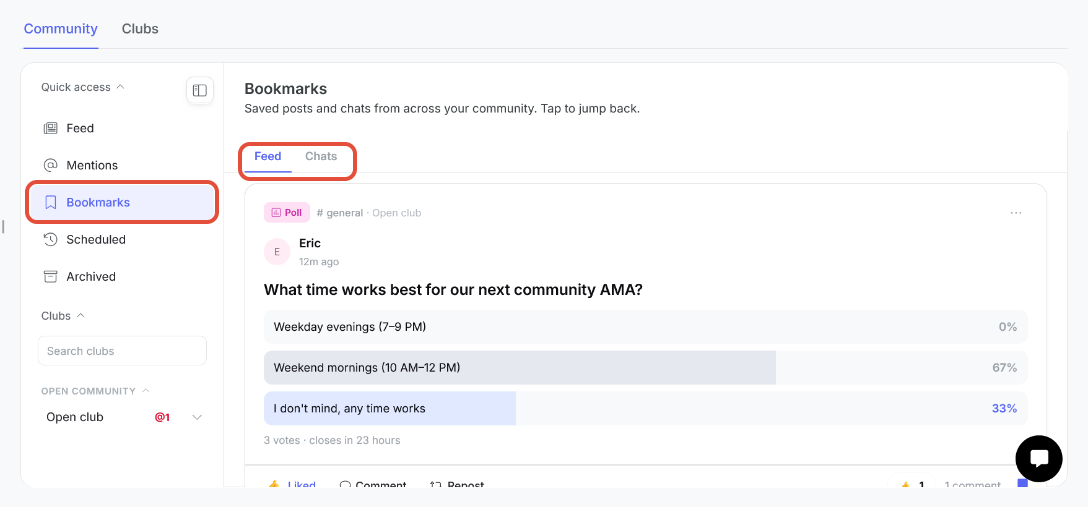
A bookmarked post
Was this article helpful?
That’s Great!
Thank you for your feedback
Sorry! We couldn't be helpful
Thank you for your feedback
Feedback sent
We appreciate your effort and will try to fix the article